Always On VPN on iPhone: How It Works and What to Use
Keeping a VPN connected automatically on an iPhone sounds simple. In practice, iOS offers several features that can make a VPN appear permanently active. Always On VPN, Connect On Demand, app-based auto-connect, and a kill switch can all affect the connection, but they do different jobs.
Here's the key distinction: Apple's Always On VPN is designed for organization-managed devices. On a personal iPhone, Connect On Demand or your VPN app's auto-connect feature is usually the more practical choice.
In iOS 27, Apple documents a newer managed Always-on VPN configuration that no longer requires device supervision. That sounds like a major change. It is, but it doesn't add a universal Always On VPN switch to personal iPhones. Understanding the difference helps you choose automatic connection settings without making unnecessary changes to your device.
What Is Always On VPN in iOS?
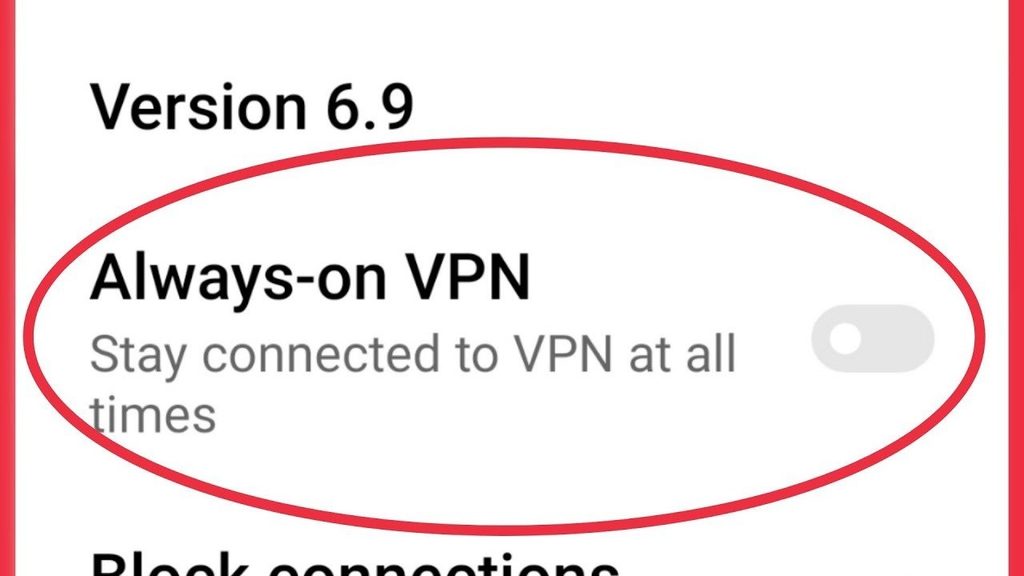
Always On VPN is an Apple networking feature that routes a managed device's IP traffic through an organization-controlled VPN connection. The user doesn't have to open an app and connect manually. Instead, the organization deploys and enforces the configuration through Apple's device-management system.
It's mainly used by businesses, schools, and organizations that need centralized control over device traffic. Once configured, Always On VPN operates at the system level and is designed to stay enforced through normal use, including device restarts.
Apple's managed Always On VPN uses IKEv2 tunnels and can cover Wi-Fi and cellular connections. Control is different, too. While you can generally disconnect a personal VPN from its app, an organization may restrict whether a managed VPN can be changed or switched off.
What Changed With Always On VPN in iOS 27?
Before iOS 27, Apple's traditional Always On VPN deployment required device supervision. The newer declarative approach changes that requirement, not the organizational purpose of the feature.
Apple confirms this in Always-on VPN declarative configuration for Apple devices, an Apple Platform Deployment document published 2027. It lists iOS 27 as the minimum supported iPhone operating system, states that supervision is not required, and supports Device Enrollment and Automated Device Enrollment. The older approach is described separately in Apple's VPN overview for Apple device deployment, published November 4, 2025.
This is still an organization-managed configuration. It uses IKEv2, supports defined traffic exceptions, and includes a UI toggle enabled setting that can let users switch it off if an administrator permits. It isn't a new consumer-app setting.
Removing the supervision requirement doesn't let every iPhone owner enable Always On VPN independently. The device must still use a supported enrollment method, and the options available to an administrator depend partly on the management service being used.
For most personal iPhone owners, this change does not affect how they connect to a commercial VPN application.
Always On VPN vs. Connect On Demand, Auto-Connect, and Kill Switch
These features may look similar when the VPN reconnects automatically. Under the hood, they solve different problems.
| Feature | Main Purpose | Typical Use |
| Always On VPN | Enforces a persistent managed VPN connection | Organization-managed devices |
| Connect On Demand | Automatically connects according to configured network rules | Personal or managed VPN configurations |
| Auto-Connect | Starts or restores a VPN connection based on app settings | Consumer VPN applications |
| Kill Switch | Helps restrict unprotected traffic when the VPN connection fails | VPN applications that support the feature |
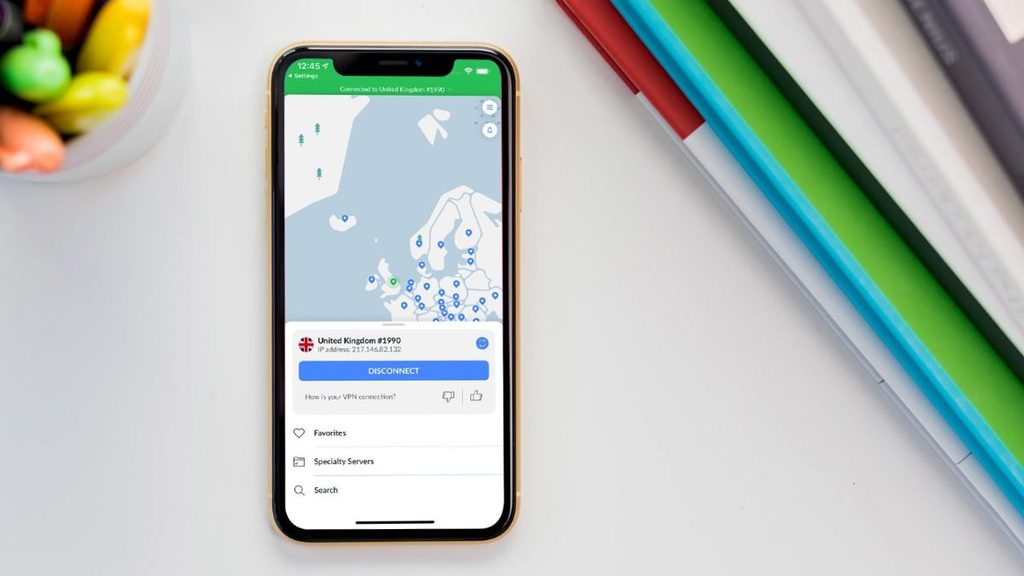
How Connect On Demand Works
Connect On Demand lets iOS start or stop a VPN when specific conditions are met. It relies on connection rules rather than enforcing a permanent, organization-managed tunnel.
Rules can evaluate the network interface, Wi-Fi network, DNS information, or domains being accessed. For example, a company might require the VPN on unfamiliar Wi-Fi but leave it disconnected on its trusted office network. The trigger matters.
Personal VPN apps can use On Demand behavior, too. But you won't necessarily be able to edit the underlying rules in iPhone Settings; your VPN provider determines which controls to expose.
How Auto-Connect and Kill Switch Work Together
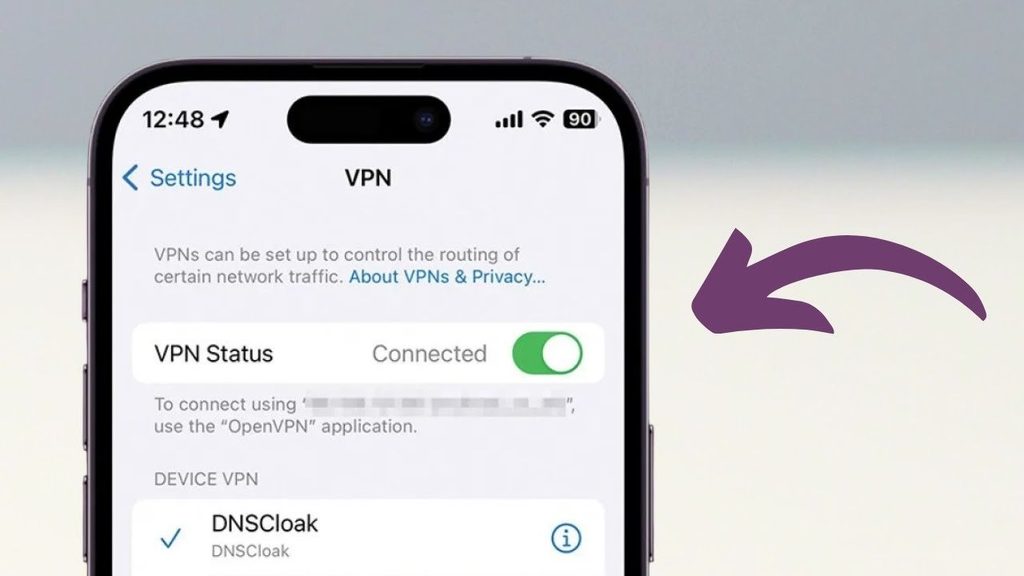
Auto-connect is usually a feature inside the VPN app. Depending on the provider, it may connect when you join Wi-Fi, change networks, open the app, or lose an established VPN connection. The triggers vary.
Some apps implement auto-connect using Apple's On Demand networking features. That overlap explains why the terms are sometimes used interchangeably, even though one describes the app's user-facing behavior and the other refers to system-level rules.
A kill switch has a different job. If a VPN tunnel drops, it aims to prevent selected traffic from continuing outside the tunnel. Auto-connect tries to restore the connection; a kill switch tries to limit what happens while it's down. How much a kill switch blocks depends on the provider's iOS implementation. Don't assume every app stops all traffic in every situation. Apple's VPNs & Privacy notice, dated December 12, 2025, also explains that certain traffic needed for system functions can bypass an active VPN.
For personal iPhone users, choosing a VPN application that supports reliable automatic connections and appropriate connection-failure protection is often the closest practical alternative to an enterprise Always On VPN deployment.
How to Enable Automatic VPN Connections on iPhone
Most personal iPhone users don't need Apple's managed Always On VPN. The simpler route is to use the connection options offered by their VPN app.
These five steps show what to check. Names and menus vary by provider and iOS version.
Step 1: Install and Connect Your VPN
Install the official VPN app from the App Store and sign in if required. Then choose a server and connect. Start there; automatic rules won't help if the ordinary connection doesn't work.
If iOS asks for permission to add a VPN configuration, make sure the request comes from the app you intended to install. Approve it if you trust the provider. This lets the app create and manage its VPN connection. VPN app availability can vary depending on your App Store country or region. If your preferred VPN application is unavailable, our guide on Change App Store Region iPhone explains Apple's region settings and the requirements to consider before making changes.
Step 2: Find Auto-Connect in the VPN App
Open the VPN app's Settings or Preferences and look for Auto-Connect, Automatic Connection, Connect Automatically, or similar wording. Can't find it? Check the provider's iOS instructions before assuming the feature is unavailable.
If the setting is available, turn it on and review the conditions it offers. One app might connect on untrusted Wi-Fi; another might focus on restoring a connection after a network switch. Those aren't quite the same behavior. Choose the configuration that matches how you use your iPhone rather than enabling every available option without reviewing its purpose.
Step 3: Check Connect On Demand in iPhone Settings
You can also inspect the VPN configuration already installed on your iPhone. Open Settings → General → VPN & Device Management → VPN.
Select the relevant VPN configuration or tap its information button, if available. Depending on the configuration, you may see a Connect On Demand option. If Connect On Demand is shown and editable, check whether it's enabled. Not every VPN exposes this switch, and that isn't necessarily a fault. The provider may manage the rules within its own app, or a device-management policy may prevent you from changing them. Don't attempt to recreate a managed configuration just to make the toggle appear.
Step 4: Review Kill Switch Settings
Return to the VPN app and look for a kill switch or a similarly named connection-protection feature. Read the provider's iPhone-specific explanation before switching it on. Some implementations restrict access while the tunnel is down; others have a narrower scope.
Enabling this feature can improve connection-failure protection, but it may also temporarily interrupt internet access when a VPN server becomes unavailable.
Step 5: Test Automatic Reconnection
Once you've configured automatic connections, verify that the VPN works normally. Then move from Wi-Fi to cellular data, or disconnect from and rejoin a Wi-Fi network. Does the app reconnect as expected?
Check the VPN status and compare the result with your chosen conditions. A restart offers another useful check, although reconnection behavior still depends on the provider. If it fails, revisit the app's settings and server selection first. Don't reset network settings or reinstall the VPN unless there's a separate reason to do so.
Personal VPN vs. Managed VPN on iPhone
Personal and managed VPN configurations can appear on the same iPhone settings screen. The difference is who controls them. With a personal VPN, you usually select servers and connection preferences in the app; with a managed VPN, an organization may control certificates, authentication, routing, exceptions, and the ability to disconnect.
This distinction is especially important on company or school devices, where changing a VPN configuration could interrupt access to internal services. For personal devices, choosing the Best VPN for iPhone can help you find a service with reliable auto-connect features, connection protection, and compatibility with your iOS version.
Does Always On VPN Stay Connected After Restarting?
Traditional managed Always On VPN is designed to activate automatically and remain enforced across restarts. Apple's declarative-configuration document describes the same persistent purpose for iOS 27, with updated enrollment requirements.
That doesn't guarantee a continuous tunnel when there's no network available. The device still needs connectivity to reach its VPN server. For a personal VPN app, whether the tunnel reconnects after restarting depends on the provider and its settings.
Can Always On VPN Be Turned Off?
It depends on the organization. Apple's document, Always-on VPN declarative configuration for Apple devices, lists UI toggle enabled as an optional setting. An administrator can use it to allow a user-facing switch; otherwise, the managed configuration may not be independently disabled.
If your iPhone is managed by an employer or school and you cannot disconnect its VPN, contact the administrator rather than attempting to remove required management settings.
Does Always On VPN Route All Traffic Through the VPN?
Managed Always On VPN is designed to route device-wide IP traffic through an organization's tunnel. There are exceptions. Apple's iOS 27 declaration allows administrators to define service and app exceptions and make allowances for captive networks, including public Wi-Fi sign-in pages. So 'Always On' describes persistent managed enforcement, not an absolute promise that every connection takes the same route.
Apple also supports Per-App VPN in managed environments. Instead of routing the entire device's traffic through one organizational VPN, this approach can associate specific managed applications with a VPN connection. For example, a corporate application may use the organization's network while unrelated personal applications use the normal internet connection.
Does Keeping a VPN Connected Use More Battery?
Maintaining a VPN tunnel requires some network and processing activity. That can increase battery use, but there's no universal percentage: signal strength, protocol, traffic, and server stability all matter.
A stable tunnel may have a modest effect. Frequent reconnections can make the impact more noticeable. To judge what happens on your phone, compare battery use with the VPN on and off under similar conditions rather than borrowing a figure from someone else's device.
Frequently Asked Questions
Can I Enable Always On VPN on My Personal iPhone?
Apple's Always On VPN is primarily designed for organization-managed iPhones. It requires a supported device-management configuration rather than a simple setting available to every user. For a personal iPhone, using a VPN app with auto-connect or Connect On Demand is usually the most practical alternative for maintaining automatic VPN connections.
What Is the Difference Between Always On VPN and Connect On Demand?
Always On VPN enforces a persistent VPN connection on managed devices, while Connect On Demand automatically establishes connections based on configured network conditions. Connect On Demand can work with personal VPN applications and may activate when connecting to certain Wi-Fi networks. Unlike managed Always On VPN, it does not necessarily enforce continuous VPN connectivity.
Why Does My iPhone VPN Keep Turning Itself Back On?
Your iPhone VPN may reconnect automatically because an auto-connect feature or Connect On Demand rule is enabled. Check your VPN application's settings and navigate to Settings > General > VPN & Device Management > VPN. If your iPhone belongs to an organization, a device-management policy may also prevent you from permanently disconnecting the VPN.
What Is the Best VPN Setting for Most iPhone Users?
For most personal iPhone users, enabling auto-connect or Connect On Demand provides a practical balance between convenience and network privacy. These features can help restore VPN connections when network conditions change. Using a VPN with a reliable iOS kill switch may provide additional protection during unexpected disconnections. The ideal settings depend on your VPN provider and connection requirements.
Will My VPN Automatically Reconnect After Restarting My iPhone?
A managed Always On VPN is designed to reconnect automatically after an iPhone restarts, provided the device has network connectivity. For personal VPN applications, automatic reconnection depends on the provider's iOS implementation and enabled settings. Some applications support reconnecting after a restart through auto-connect or On Demand rules. Testing the connection after restarting your device can help confirm whether the feature works as expected.
Does Keeping a VPN Always On Drain iPhone Battery?
Keeping a VPN connected continuously may increase battery consumption because encryption and background network activity require additional resources. The impact depends on your VPN protocol, server stability, and connection quality. If you notice unusually high battery usage, our guide on VPN Drains iPhone Battery explains common causes and practical ways to reduce power consumption.