VPN Settings on iPhone Explained: An Honest Guide (2027)
Opening the VPN settings on iPhone can be confusing if you are not familiar with network configurations. You might see a VPN status switch, an information button, Connect On Demand, or technical fields such as Remote ID and Local ID without knowing what they control.
These options do not provide a VPN service on their own. Instead, they allow iOS to manage connections created by VPN apps, entered manually, or installed through an organization. Most people using a commercial VPN app will rarely need to change these settings because the app handles the technical configuration automatically.
This guide explains where to find your iPhone's VPN settings, what each option means, and when you might need to adjust or remove a configuration. It also covers the difference between a personal VPN connection and device-management settings used by employers and schools.
Where to Find VPN Settings on iPhone
You can normally access saved VPN configurations through the iPhone Settings app.
Follow this path:
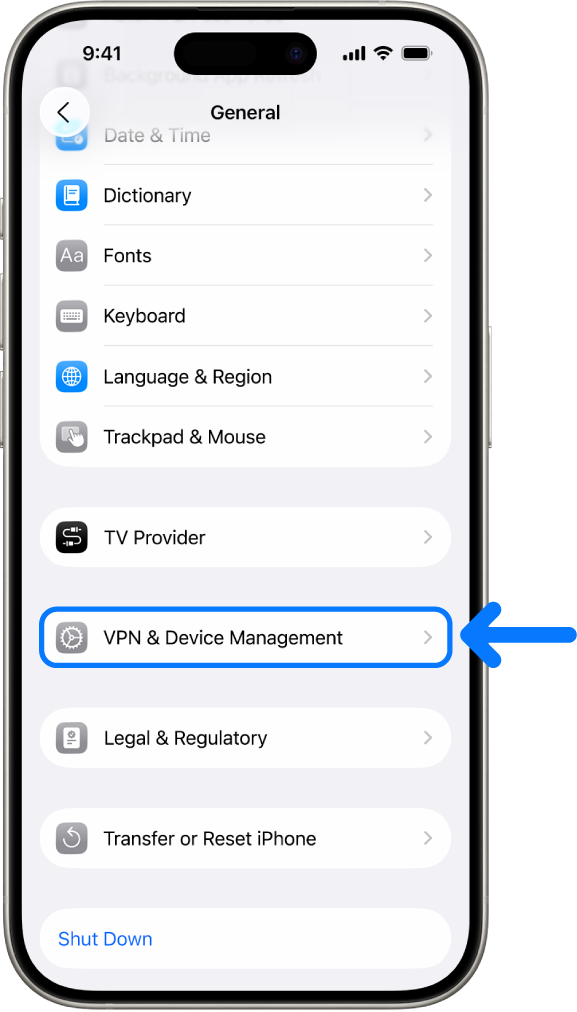
Settings → General → VPN & Device Management → VPN
To open the relevant screen:
- Open Settings on your iPhone.
- Scroll down and select General.
- Tap VPN & Device Management.
- Select VPN to view available configurations.
If a VPN has already been configured, you may see its name, connection status, and an information button. The available controls depend on the iOS version, connection type, and whether an app or organization manages the configuration.
A VPN configuration contains the information iOS needs to establish a connection to a VPN server. Depending on the connection type, that information can include a server address, authentication method, identity settings, and rules governing when the VPN connects.
The configuration is not necessarily created manually. When you install a commercial VPN application and approve its request to add a VPN configuration, iOS can create the corresponding entry automatically.
Apple explains the underlying protocols and management options in its official VPN overview for Apple devices. If you have not installed a VPN app or received configuration details from an organization, you generally do not need to create a connection manually.
Understanding VPN Status and Connect On Demand
The VPN screen contains several controls that help you identify saved connections and understand how they behave. Some options are common across configurations, while others appear only for particular connection types.
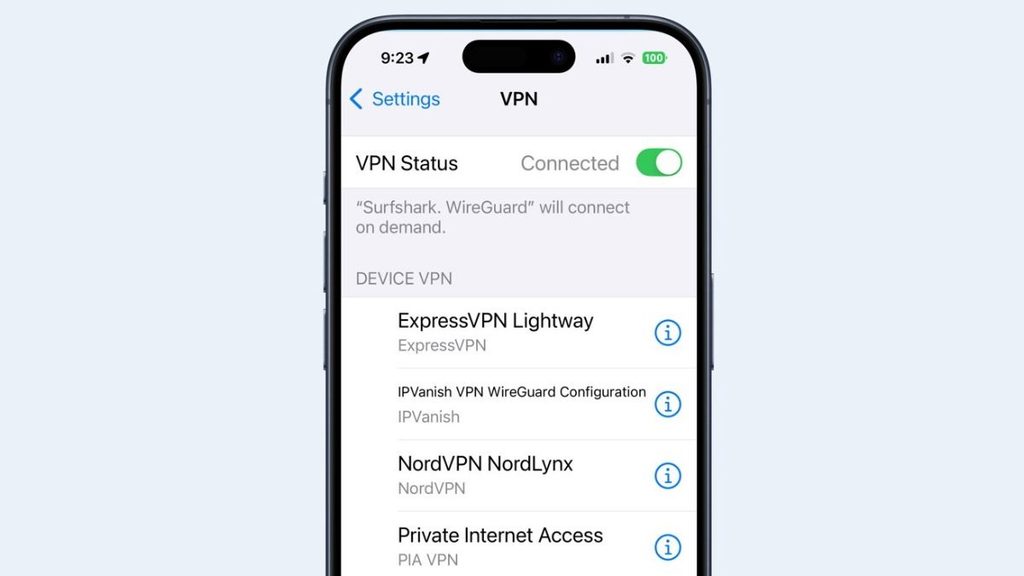
VPN Status: Connected or Disconnected
The VPN Status indicator shows whether a selected VPN connection is currently active.
When the status displays Connected, iOS has established the VPN tunnel. Traffic covered by that configuration is routed through the connection according to its network settings.
When it displays Disconnected, the VPN tunnel is not active, and internet traffic ordinarily follows the device's normal network routing.
However, the status indicator does not establish that every type of traffic is protected. Some configurations use routing exceptions or app-specific connections, particularly on devices managed by an organization. If you are using a consumer VPN application, you can usually view more detailed connection information inside that app.
VPN Profile Name and Information Button
An iPhone may contain several saved VPN configurations, although they are not necessarily active at the same time.
The name displayed beside a configuration usually identifies the VPN application, organization, or manually created connection. It helps you distinguish one saved setup from another.
Some configurations also display an ⓘ information button. Selecting it may reveal connection details or additional options, depending on the VPN protocol and the way the configuration was installed. You should not assume that every VPN profile provides the same controls. A manually configured IKEv2 connection can display different options from a VPN managed entirely through an application.
Connect On Demand
Connect On Demand allows iOS to establish a VPN connection automatically when specific conditions are met.
For example, an organization's VPN configuration may include rules that activate a connection when an iPhone joins an unfamiliar Wi-Fi network or attempts to access particular internal resources. These rules can consider network interfaces, domain names, DNS conditions, and other connection information.
This explains why some VPNs reconnect after being manually disconnected. The behavior may be intentional rather than a malfunction.
Apple's VPN On Demand documentation describes how connection rules can respond to network changes and requests for specific destinations. Not every VPN application exposes Connect On Demand directly in Settings. Some providers implement automatic connections through controls inside their own apps, so the exact behavior depends on the configuration.
Add VPN Configuration: What Each Field Means
The Add VPN Configuration option allows you to create a connection using technical information supplied by a VPN provider or network administrator.
The usual path is:
Settings → General → VPN & Device Management → VPN → Add VPN Configuration
Manual setup is most relevant when an employer, university, or VPN provider gives you specific connection details. The option itself does not create a VPN subscription or provide access to a VPN server.
The fields displayed depend on the selected VPN type. For example, an IKEv2 configuration may require identity information that is not used in the same way by another protocol.
Manual VPN Configuration Fields Explained
| Field | What It Means |
| Type | Selects the VPN protocol or connection type, such as IKEv2 |
| Description | A name that identifies the connection on your iPhone |
| Server | The hostname or IP address of the VPN server |
| Remote ID | Identifies the expected remote VPN endpoint for authentication |
| Local ID | Identifies the client when required by the configuration |
| Authentication | Specifies how the device or user proves authorization |
| Username and Password | Credentials supplied for the VPN connection, when required |
| Certificate | A digital credential used for supported authentication methods |
| Proxy | Optional settings for routing certain traffic through a proxy |
Description and Server
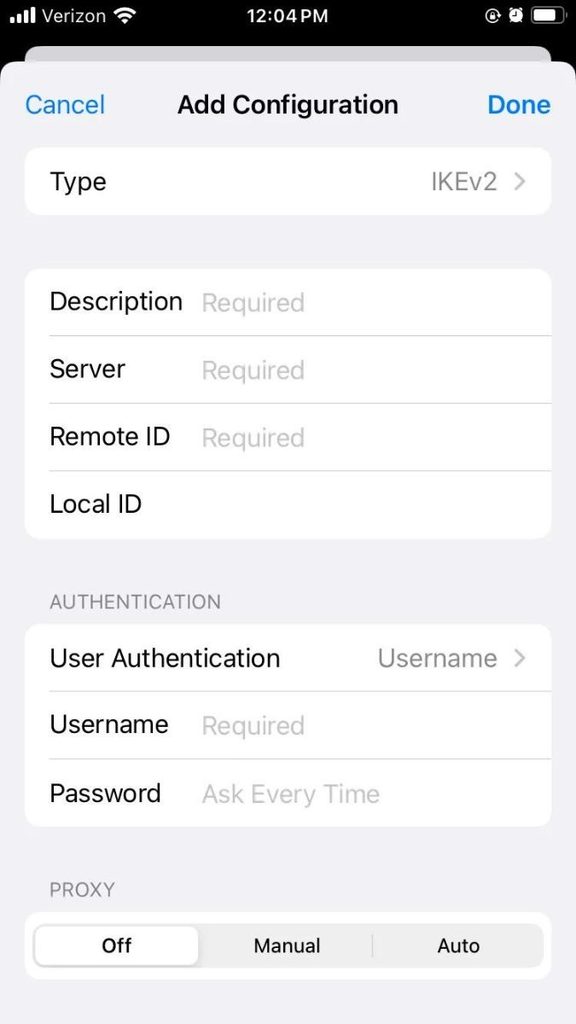
The Description field is simply a label. You might name a connection Office VPN or University Network so that it is easy to recognize in Settings. Changing this label does not affect the connection's security, speed, or destination.
The Server field is different because it identifies the VPN gateway your iPhone must contact. It usually contains a hostname or IP address supplied by the administrator or provider. If the server information is incorrect, the connection may fail even when the remaining settings are valid.
Remote ID and Local ID
Remote ID and Local ID can appear in IKEv2 configurations, and they are often confusing for users setting up a VPN manually.
The Remote ID identifies the expected remote endpoint and helps the connection verify the server's identity during authentication. It should not automatically be assumed to match the server hostname, even though the values may be identical in some deployments.
The Local ID identifies the client side of the connection. Its value and whether it must be supplied depend on the configuration and authentication method.
Apple's IKEv2 configuration documentation describes these identifiers and their role in managed VPN configurations. If a network administrator provides identity values, enter them exactly as instructed. Guessing a Remote ID or entering arbitrary text into the Local ID field can prevent the connection from authenticating.
Authentication and Certificates
Authentication determines how the VPN verifies that your iPhone or account is authorized to connect. Depending on the VPN configuration, this may involve a username and password, a digital certificate, a shared secret, or another supported method.
Certificates are particularly common in some organizational environments because they allow devices or users to prove their identity without relying exclusively on a manually entered password.
Apple documents supported protocols and authentication methods in its VPN deployment overview.
For most consumer VPN apps, these technical details are handled automatically. Manual configuration should only be attempted when you have valid information from a trusted provider or administrator.
VPN Apps vs. Manual VPN Configuration
A VPN app and a VPN configuration are related, but they serve different purposes.
The application provides the interface used to connect, select servers, manage an account, and adjust provider-specific features. The VPN configuration is the system-level information that allows iOS to establish and manage the connection. When you first activate a compatible VPN application, iOS normally asks for permission to add a VPN configuration. Once approved, the application can manage the connection without requiring you to enter technical information yourself.
This is why installing a VPN app may cause a new entry to appear under VPN & Device Management. It is expected behavior and does not mean an organization has taken control of your phone.
Manual configuration is more useful when you need to connect to a private network using server and authentication details supplied by an organization. It can also be appropriate for VPN services that explicitly support manual configuration. For ordinary personal use, there is usually no advantage to recreating a working app-managed configuration manually. Changing technical fields unnecessarily may cause authentication failures or interrupt an otherwise functioning connection.
Apple's VPN documentation explains that third-party applications can use the Network Extension framework to provide VPN functionality on supported Apple devices.
VPN & Device Management, Profiles, and Always-On VPN
The VPN & Device Management section combines VPN connections with tools for managing device configurations. Although the menu name may sound technical, its presence alone does not mean your iPhone is controlled by another organization.
Understanding the difference between VPN configurations and management profiles can help you avoid removing settings that your device needs.
What Are Configuration Profiles?
A configuration profile is a collection of settings that can be installed on an iPhone. Businesses and schools commonly use profiles to configure network access, email accounts, Wi-Fi connections, certificates, and security requirements.
A normal consumer VPN app can create a VPN configuration without installing a full organizational management profile. If your employer or school installed a profile, it may contain settings that affect more than one service. Removing it could also remove access to organizational accounts, networks, certificates, or managed applications.
According to Apple's guide to installing and removing configuration profiles, installed profiles can be viewed under Settings → General → VPN & Device Management.
Apple also recommends reviewing unfamiliar profiles because they can affect device configuration. You should contact your administrator before changing a profile that belongs to your workplace or school.
Connect On Demand vs. Always-On VPN
Although both features can establish VPN connections automatically, they are designed for different purposes. Connect On Demand uses configuration rules to decide when a VPN connection should start. A connection might activate on a particular network or when an application attempts to contact a specified destination.
Always-On VPN is primarily an organizational network-management feature. It is designed to maintain VPN protection according to policies set by an administrator rather than ordinary user preferences.
Traditional Always-On VPN deployments required supervised devices. With iOS 27, Apple introduced a newer declarative Always-on VPN configuration that no longer requires supervision, although it still requires supported organizational device enrollment. Apple documents these requirements in its Always-on VPN configuration guide.
For users of normal consumer VPN applications, app-based auto-connect or Connect On Demand is generally more relevant. Always-On VPN should not be confused with a basic switch that any personal VPN app can activate in the same way.
Changing or Removing VPN Settings Safely
Most iPhone users do not need to edit VPN configurations regularly. If a commercial VPN app is working correctly, server selection, protocol changes, and other connection preferences are usually best managed through the app itself.
However, there are situations where reviewing or removing an existing configuration may be useful.
Removing an Unused VPN Configuration
Disconnecting a VPN and deleting its configuration are different actions.
Disconnecting ends the active session while leaving the saved connection information on the device. Removing the configuration deletes that saved setup, which means the VPN may need to be configured again before it can reconnect.
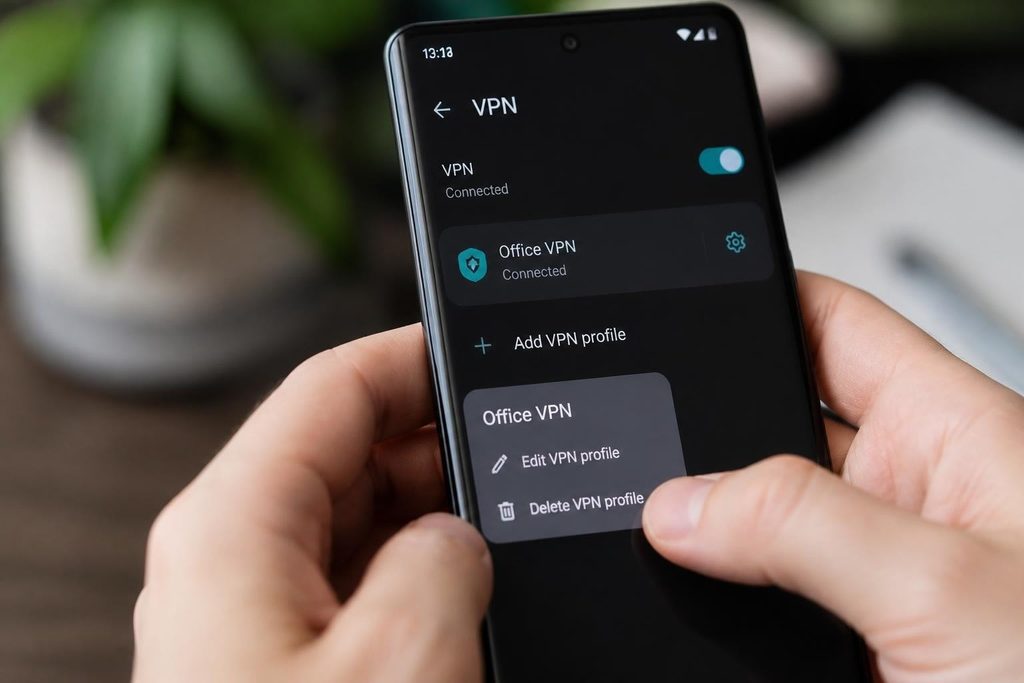
To inspect a saved connection, open Settings → General → VPN & Device Management → VPN and select its information button if available. The removal controls depend on how the configuration was created and whether it is managed. For an app-managed VPN, the application may also provide a way to remove or recreate its configuration. If the VPN software remains installed and active, it may request permission to add the configuration again.
Managed profiles require greater caution. Apple explains in its profile removal guidance that deleting a profile also removes its associated settings and information.
Avoid removing organizational profiles unless you understand their purpose or have approval from the administrator.
What If VPN Settings Are Not Working?
A VPN configuration may fail because of incorrect authentication information, an unavailable server, network restrictions, or a problem with the VPN application.
If a connection stops working, first check whether your iPhone has normal internet access without the VPN. Then review the connection status, confirm that the correct profile is selected, and check for updates or troubleshooting instructions from your VPN provider. If you're considering switching providers, our guide to the Best VPN for iPhone can help you explore reliable options.
For a manually configured VPN, verify the server address, authentication details, and identity fields against the information originally supplied. Repeatedly changing values without knowing their purpose is unlikely to resolve the issue. Apple's network troubleshooting guidance also recommends examining VPN and other third-party networking software when connectivity problems occur.
If you still cannot connect, contact the provider or administrator before deleting profiles or resetting network settings, particularly on a managed device.
Frequently Asked Questions
Will Reset Network Settings Remove My VPN Configurations?
It can. According to Apple's network reset documentation, resetting network settings removes previously used networks and VPN settings that were not installed through a configuration profile or mobile device management. Managed configurations may remain in place and require separate administrative steps to remove. A network reset also affects saved Wi-Fi networks, so it should not be the first troubleshooting step for a minor VPN issue.
Can VPN Settings Change My iPhone's GPS Location?
No. A VPN can change the public IP address visible to websites by routing internet traffic through a VPN server, but it does not automatically change your device's physical GPS coordinates. Applications with permission to access Location Services may still determine your actual location. VPN settings and location permissions are separate parts of iOS.
Why Are Some VPN Settings Greyed Out on My iPhone?
Some options may be unavailable because the VPN application controls them, the selected protocol does not support them, or an organization manages the configuration.
Can you use a free VPN with manual VPN settings on an iPhone?
Some free VPN providers support manual configuration on iPhones, while others require you to use their dedicated apps. However, free services may come with privacy and security risks. Learn more in our guide: Free VPN for iPhone .
Does configuring a VPN on an iPhone affect battery life?
Yes. Running a VPN can increase battery consumption because your iPhone needs to maintain an encrypted connection and process network traffic. The impact depends on the VPN protocol, connection stability, and usage patterns. This is one reason why a VPN drains iPhone battery faster in some situations, particularly during extended use.