How to Use a VPN with iPhone Hotspot: What Actually Works
If you connect a VPN on your iPhone and then share your internet connection through Personal Hotspot, you might expect your laptop, tablet, or another phone to use the same VPN. However, that is not how typical consumer VPN configurations work on iOS.
Personal Hotspot shares your iPhone's cellular internet connection, while the VPN protects traffic routed through the phone's own VPN configuration. Devices connected to the hotspot do not automatically inherit that protection. If you need VPN protection on a device connected to your iPhone, the simplest approach is to run a VPN directly on that device. You can also check how your connection is routed by comparing public IP addresses, although this test has limitations that are important to understand.
Can You Share a VPN Connection Through iPhone Hotspot?
In a standard iPhone setup, Personal Hotspot does not automatically share the VPN tunnel running on the phone with connected devices. Apple describes Personal Hotspot as a feature that shares the iPhone's cellular internet connection through Wi-Fi, USB, or Bluetooth. A consumer VPN, meanwhile, establishes a separate encrypted connection for traffic routed through the device's VPN configuration.
These features can operate simultaneously, but they do not automatically become the same network connection. A laptop connected to an iPhone hotspot can therefore access the internet through the mobile carrier even when the iPhone itself has an active VPN. Proton VPN confirms this limitation in its official support documentation on sharing VPN connections through hotspots.
How iPhone and Hotspot Traffic Are Routed
Consider an iPhone using cellular data with an active VPN. Traffic generated by applications on the phone may follow this route:
iPhone app → VPN tunnel → VPN server → Internet
A website receiving that traffic would normally see the VPN server's public IP address rather than the phone's original cellular IP address.
When a laptop connects through Personal Hotspot, its traffic typically follows a different route:
Laptop → iPhone Personal Hotspot → Cellular network → Internet
The iPhone acts as the gateway providing internet access, but the laptop does not automatically become another client inside the phone's VPN tunnel.
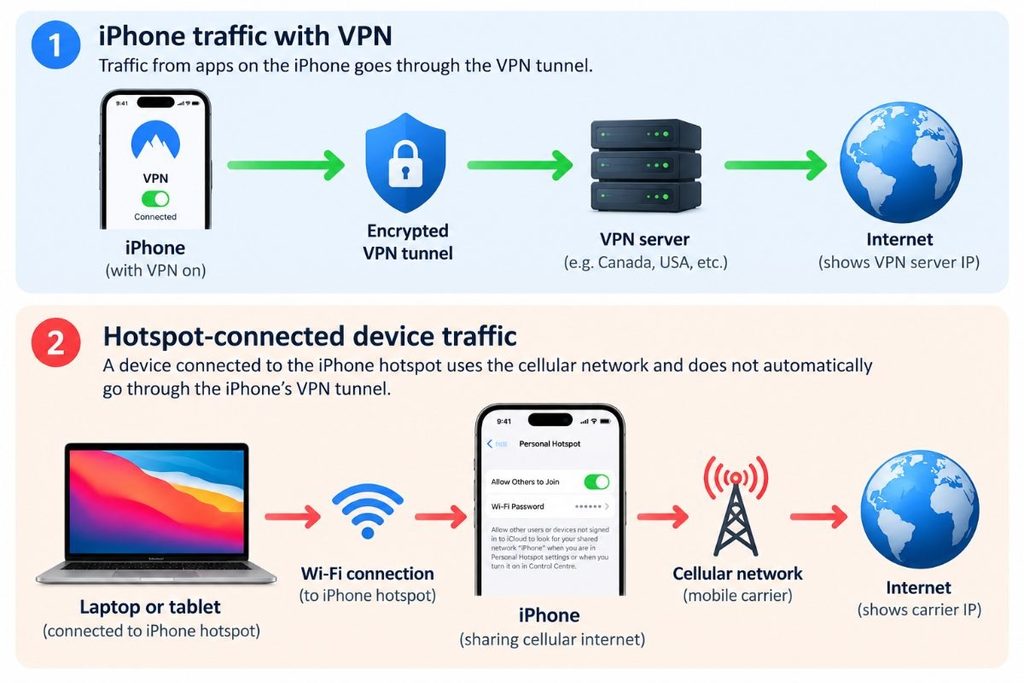
This distinction explains why an iPhone and a connected laptop may show different public IP addresses at the same time. It also means that seeing a VPN connection indicator on the iPhone is not sufficient evidence that other hotspot devices receive VPN protection.
How to Check Whether Your iPhone Hotspot Uses a VPN
Comparing public IP addresses can help you see whether a hotspot-connected device appears to use your iPhone's VPN server. This is a basic routing check, not a complete security test.
Step 1: Record Your iPhone's IP Without the VPN
Disconnect the VPN and use cellular data on your iPhone. In Safari, open Proton VPN's IP address checker and record the public IP address. If iCloud Private Relay or another proxy is active, it may change the result, so account for that before using the address as your baseline.
Step 2: Connect the iPhone's VPN
Connect through your VPN app, then revisit the same IP checker. Record the new address. If Safari traffic goes through the VPN, the displayed IP should usually change to one associated with the VPN server.
Step 3: Enable Personal Hotspot
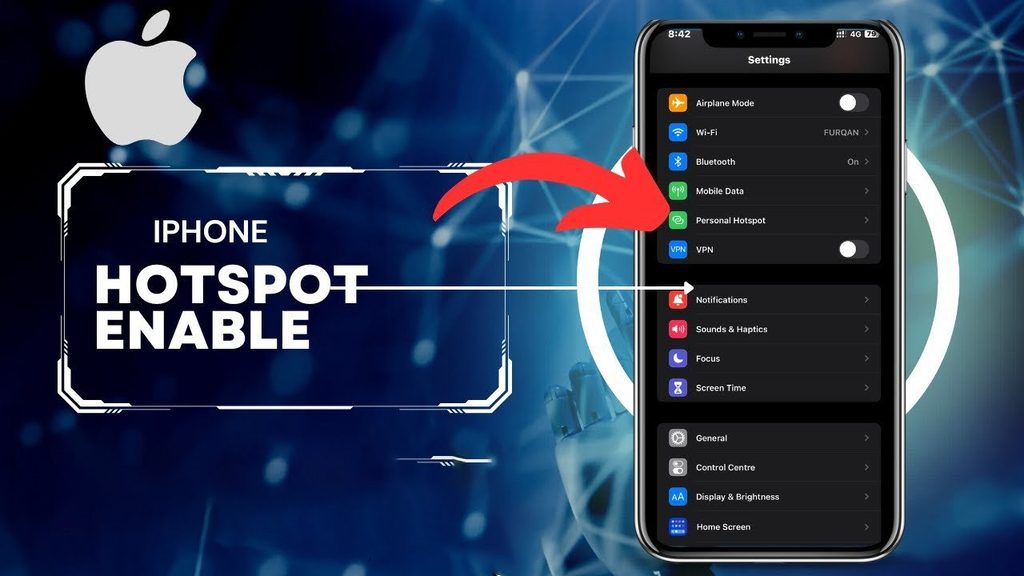
Open Settings > Personal Hotspot, enable Allow Others to Join, and connect your laptop or tablet using the hotspot password. On some devices, the menu is under Settings > Cellular > Personal Hotspot. Apple's Personal Hotspot guide covers Wi-Fi, USB, and Bluetooth connections.
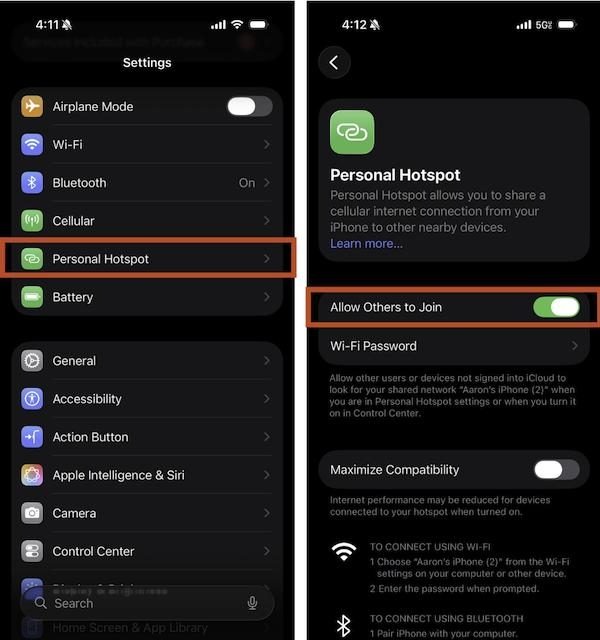
Step 4: Check the Connected Device
Turn off any VPN or proxy running directly on the laptop or tablet, then use the same IP checker. Compare the results:
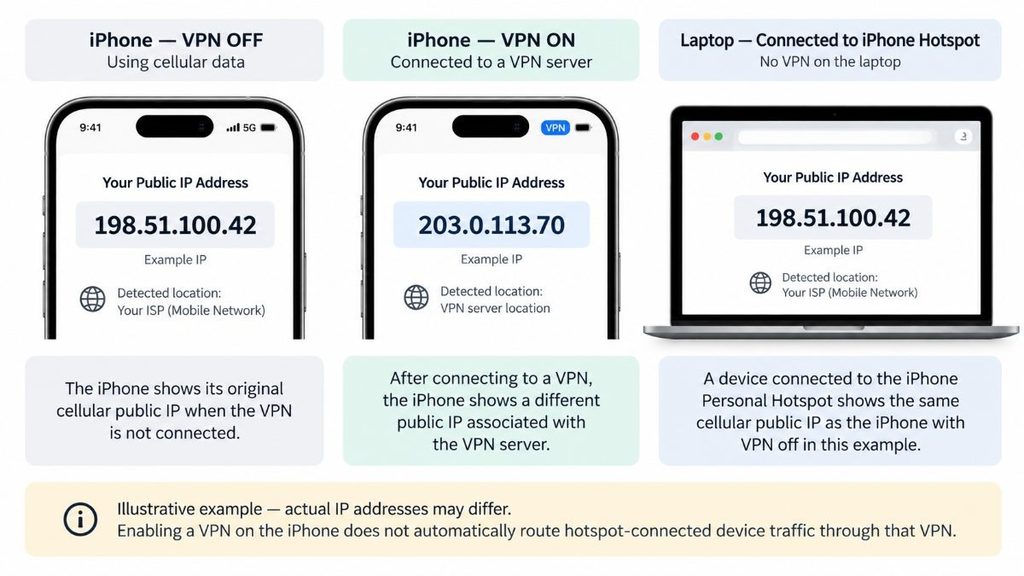
| Connection | Check |
| iPhone, VPN off | Original cellular public IP |
| iPhone, VPN on | Public IP shown through the VPN |
| Hotspot-connected device | Public IP shown on that device |
If the connected device shows the cellular carrier's public IP rather than the VPN server's address, its tested browser request is not using the iPhone's VPN tunnel. If it shows the VPN server's IP, do not assume all traffic is protected without further checks.
What This Test Cannot Confirm
A public IP lookup checks one request, not every app or network protocol. Carrier-grade NAT, IPv4 versus IPv6, browser privacy features, and split-tunneling rules can affect the result; location labels are also approximate. Matching IP addresses cannot prove that DNS requests or other traffic remain inside the tunnel. If you need broader protection, run and verify a VPN on the connected device itself, and consider separate DNS and IPv6 leak checks.
How to Use a VPN on Devices Connected to iPhone Hotspot
Although a standard iPhone Personal Hotspot does not share the phone's VPN tunnel, you can still protect connected devices through other configurations.
Option 1: Run the VPN Directly on the Connected Device
The simplest approach is to install and connect a VPN on the laptop, tablet, or second phone that uses the hotspot.
First, enable Personal Hotspot on the iPhone and connect the other device. Once it has internet access, open the VPN application on that device and establish a VPN connection.
The laptop then creates its own encrypted tunnel over the cellular internet connection provided by the iPhone.
This approach offers two practical advantages: the laptop can display its own VPN connection status, and you can independently check its public IP address to confirm that supported traffic is being routed through the selected VPN server. If VPN protection is only needed on the laptop, the iPhone does not necessarily need to run its own VPN at the same time.
Option 2: Use a VPN-Compatible Router or Gateway
Some devices, such as certain smart TVs, game consoles, or specialized equipment, may not support installing a conventional VPN application.
In these cases, a compatible router or network gateway configured to route connected-device traffic through a VPN may be a suitable alternative. Unlike an ordinary iPhone hotspot, a properly configured VPN router can establish its own VPN connection and route selected client traffic through that tunnel. The available configuration depends on the router, VPN provider, and underlying internet connection.
However, not every travel router supports the same connection methods, and not every device can use an iPhone hotspot as its upstream internet source. Confirm compatibility before purchasing or configuring additional hardware. Proton VPN also describes VPN routers as an alternative for protecting connected devices.
Do USB, Bluetooth, or Advanced VPN Settings Make a Difference?
Wi-Fi, USB, and Bluetooth Tethering
An iPhone can share its cellular connection through Wi-Fi, USB, or Bluetooth. These methods provide different ways for another device to access the same underlying mobile internet connection.
USB tethering may offer a stable physical connection, while Bluetooth can be useful in situations where a Wi-Fi connection is inconvenient. However, switching between these methods should not be treated as a way to make the connected device inherit the iPhone's VPN.
Apple's Personal Hotspot documentation explains how to establish each connection type, but those instructions describe internet sharing rather than sharing an existing consumer VPN tunnel. If VPN routing is required, use the VPN on the connected device or a compatible VPN-enabled gateway instead.
Does Include All Networks Share the VPN?
Apple's Network Extension framework includes an includeAllNetworks setting that routes most of the iPhone's network traffic through the VPN tunnel, with exceptions for certain system services. This setting controls traffic on the iPhone; it does not convert Personal Hotspot into a VPN-sharing router for connected devices.
For ordinary users, changing advanced VPN settings is not a substitute for establishing protection directly on the device whose traffic needs to be secured.
Does the iPhone Stay Protected While Hotspot Is Active?
An iPhone can continue using its own VPN while Personal Hotspot is enabled, provided that the VPN remains connected and the configuration permits the required network activity.
The phone's supported traffic can continue through its VPN tunnel while connected devices use the shared cellular connection separately. Actual routing still depends on the applications, VPN configuration, and network conditions. This means VPN protection should be evaluated for each device rather than inferred from the connection status of the iPhone providing the hotspot.
What If Personal Hotspot Stops Working With a VPN?
If Personal Hotspot works normally until you activate the VPN, investigate the connection before changing advanced network settings. Start by disconnecting the VPN and confirming that the second device can access the internet through Personal Hotspot. Then reconnect the VPN on the iPhone and check whether the second device still has internet access.
If the connection fails only when the VPN is active, the VPN application's routing rules, local-network restrictions, protocol, or compatibility with the current network may be contributing to the problem. You can also update iOS and the VPN application, restart both devices, and test again. If available on your iPhone, enabling Maximize Compatibility under Personal Hotspot settings may help with certain Wi-Fi connectivity problems, although it does not enable VPN sharing.
Apple notes that VPN and other third-party networking software can interfere with local communication and provides troubleshooting guidance in its network connectivity support article. Avoid resetting network settings as an initial troubleshooting step. A reset can remove saved Wi-Fi networks and passwords and affect VPN, cellular, and APN settings, creating additional work without necessarily resolving the original problem.
Frequently Asked Questions
Does Using a VPN Over iPhone Hotspot Consume Mobile Data?
Yes. Personal Hotspot uses the iPhone's cellular data connection, so internet activity from a connected laptop or tablet counts toward the mobile data used through that connection. Running a VPN on the connected device does not eliminate mobile data usage. VPN encryption and protocol overhead may add a small amount of traffic, but activities such as streaming, large downloads, cloud backups, and software updates usually account for much greater data consumption.
Is iPhone Personal Hotspot Secure Without a VPN?
Personal Hotspot provides a password-protected local Wi-Fi connection when configured correctly, but this is different from VPN protection. A secure hotspot connection helps control access to the local network, while a VPN creates an encrypted tunnel between the device running the VPN and its VPN server. Whether a VPN is necessary depends on the user's privacy requirements and the applications or services being accessed.
Can I Use a VPN on My Laptop Without Enabling It on My iPhone?
Yes. The iPhone can provide cellular internet access through Personal Hotspot while the laptop runs its own VPN. This is generally the most straightforward approach when only the laptop requires VPN protection. Before relying on the connection for sensitive activities, confirm that the laptop's VPN is connected and verify its network behavior independently.