VPN Draining Your iPhone Battery? Causes and 10 Fixes (2027)
A VPN can use more battery on an iPhone because it maintains an encrypted connection while your apps send and receive data. That extra work is usually modest, but weak cellular coverage, repeated reconnections, or heavy background activity can make the difference more noticeable.
If your battery suddenly drains faster with a VPN enabled, check whether the VPN is actually responsible before changing settings. The steps below explain what to look for, how to compare battery use, and which fixes are worth trying first.
Does a VPN Drain iPhone Battery?
Yes, a VPN can increase power consumption, but there's no single percentage that applies to every iPhone. In a Gizmodo report published on October 13, 2026, five VPN services were evaluated on an iPhone 17 Pro using home Wi-Fi. Its battery comparison involved a 20-minute 1440p YouTube playback test with additional protection features enabled.
The report's comparison table lists 1 additional percentage point of battery use for ExpressVPN, 2 points for Proton VPN and NordVPN, and 3 points for Surfshark and Private Internet Access, relative to its no-VPN baseline. However, its NordVPN review text reports 1 point rather than the table's 2. Because those figures conflict, NordVPN's exact result should not be treated as settled.
These are short-session observations from one published test, not battery-life predictions for every device. The report doesn't provide enough information about repeated battery runs to establish whether one- or two-point differences would persist across trials. Network conditions, display brightness, video playback, battery health, server selection, and VPN settings can all affect results. A small difference in this test is not evidence that a particular VPN will save hours of battery life.
When Is VPN Battery Drain Abnormal?
Some additional power use is expected during continuous VPN activity. What deserves attention is a sudden change that persists under similar conditions, especially if it comes with an unstable connection or an unusually warm iPhone.
Signs worth investigating include:
- Battery life drops sharply after you enable the VPN.
- The VPN keeps switching between connected and reconnecting.
- Your phone becomes warm during otherwise light use.
- Battery use stays high while the phone is mostly idle.
- The difference repeatedly disappears when you disconnect the VPN.
One poor battery day doesn't establish the cause. A repeatable pattern is more useful, particularly if the same apps and network behave normally without the VPN.
Check iPhone Battery Usage Before Blaming the VPN
Open Settings → Battery and review daily usage, the apps consuming the most power, background activity, and any notices about poor cellular coverage. Apple's battery troubleshooting guide explains these indicators and notes that weak signal can raise battery use.
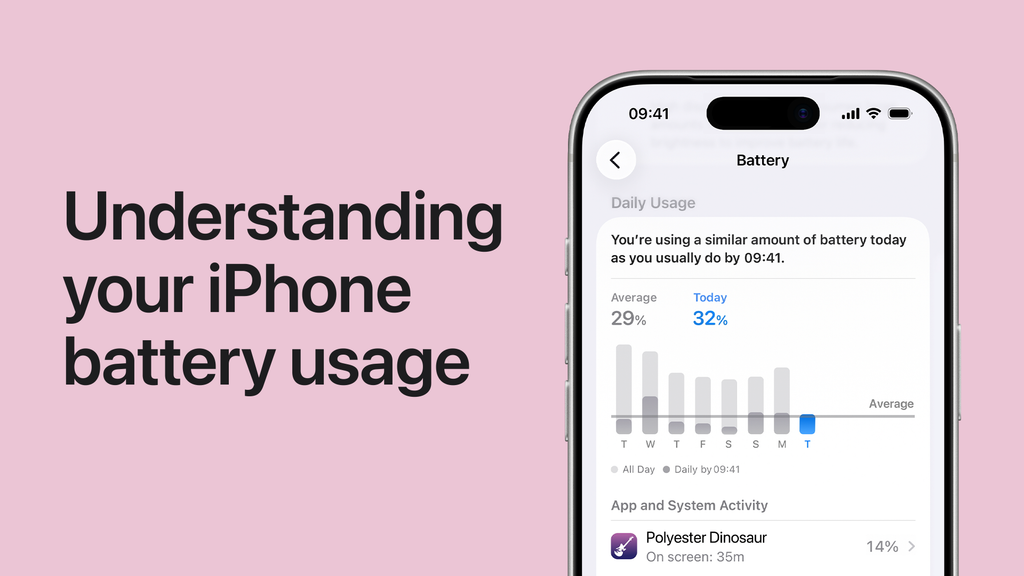
Battery settings do not necessarily isolate the VPN's total power cost. The VPN may be active while streaming, navigation, uploads, or another app uses most of the energy. Some connection overhead may be attributed to network or system activity rather than appearing neatly under the VPN app. Treat the screen as evidence of usage patterns, not as an exact VPN battery meter.
If drain remains high with the VPN off, check general battery health as well. On iPhone 15 and later, Apple places this under Settings → Battery → Battery Health; on iPhone 14 and earlier, look for Battery Health & Charging.
Test VPN Battery Drain on Your Own iPhone
A simple comparison on your own phone is more relevant than assuming an online test applies directly to you. Keep the screen brightness, network, apps, and duration as similar as possible, and avoid charging during either session.
- VPN off: Start at a recorded battery level and use the phone normally for a fixed period, such as 30 to 60 minutes. Record the ending percentage.
- VPN on: Repeat the same activities for the same duration with a nearby VPN server, then record the result.
- Compare: Note the battery percentage points used in each session, not just the final charge level.
- Repeat: Run both conditions again on another occasion, ideally alternating their order to reduce the influence of background tasks and temperature.
For example, if the phone uses 9 percentage points without a VPN and 11 with one, the observed difference is 2 percentage points. These are illustrative numbers, not a measured result. Short tests can be noisy because battery percentages are approximate, and background tasks don't always repeat consistently. A 20-minute comparison may suggest a pattern but cannot prove the VPN caused a small difference. If you're changing your App Store region to access apps that aren't available in your current country, keep in mind that VPN usage alone does not change your Apple Account's region. Follow the steps to Change App Store Region iPhone to understand how the process works.
10 Ways to Reduce VPN Battery Drain on iPhone
Try one change at a time and compare battery behavior again. Start with network quality and connection stability; leave app reinstalls and network resets for later.
1. Check Your Signal and Network Quality
A weak cellular signal can use extra power even without a VPN. When the connection is unstable, the phone and VPN may also work harder to stay online. Apple's battery guidance identifies low signal and missing coverage as possible causes of extra drain.
Try the same VPN server on stable Wi-Fi, then compare it with cellular data in a location with strong reception. If battery life is noticeably worse only in one location or on cellular, focus on coverage and network stability before changing encryption settings. A better signal may help more than switching VPN providers.
2. Choose a Nearby or Different VPN Server
A distant server isn't automatically bad for battery life, but an overloaded server or unstable route can extend connection time and trigger repeated network activity. If your app offers Nearest, Recommended, or Fastest, use that option for a comparison.
Keep the protocol and network unchanged while testing. If battery drain or reconnections improve after switching servers, the original route may have contributed to the problem. If nothing changes, move to the next check. Server distance alone cannot predict battery consumption.
3. Look for Repeated VPN Reconnections
An active VPN tunnel and a tunnel that reconnects every few minutes create different workloads. Interruptions may come from weak Wi-Fi, network handoffs, a restrictive hotspot, or a server that isn't responding consistently.
Watch your VPN app's status as you use the phone. If it frequently shifts between Connecting, Connected, and Reconnecting, try a stable network and one nearby server. Check whether the pattern stops before drawing conclusions about power use. A reliable connection is usually a better target than an arbitrary battery-saving setting, especially when the phone moves between Wi-Fi and cellular coverage.
4. Test Another Supported VPN Protocol
Protocols handle encryption, connection setup, and network changes differently, but no protocol is guaranteed to use the least power on every iPhone. If your VPN offers Automatic or Recommended, use it as the baseline instead of assuming one named protocol is always best.
If drain remains unusually high, try another protocol supported by the provider while keeping the server and network as similar as possible. Compare reconnections and battery use across more than one session. Don't enter technical settings manually without instructions, and don't weaken connection protection simply to chase a small percentage-point difference.
5. Review Background Activity and Data Usage
Streaming, video calls, navigation, cloud backups, uploads, and Personal Hotspot can consume significant energy with or without a VPN. The VPN carries network traffic generated by these activities, but that doesn't mean it is the main source of battery drain.
In Settings → Battery, review which apps were active during the period when consumption increased. Look for unexpected background work and compare another session using the same apps with the VPN disconnected. If a photo backup or large download caused the spike, changing servers won't solve the underlying activity. Address that workload before blaming the VPN itself.
6. Update the VPN App and iOS
Outdated software may contribute to connection instability or compatibility problems. Check the App Store for an update to your VPN application, then visit Settings → General → Software Update for iOS updates.
Don't measure the effect immediately after a major iOS installation. Apple notes that background update tasks can temporarily increase battery use and recommends checking again after a few days. Once the phone has settled, repeat your comparison with the same network and server. Updates can fix problems, but they don't guarantee lower battery consumption in every situation.
7. Review Optional VPN Protection Features
Some providers add tracker blocking, extra traffic filtering, multi-hop routing, or connection monitoring. Those features can change how traffic is processed, although their power impact depends on how each app implements them.
If abnormal drain began after you enabled a particular option, read the provider's documentation and test that one change. Temporarily turn it off only if you understand the privacy or security trade-off, then compare battery usage under similar conditions. Restore it if you see no meaningful improvement. Avoid disabling safeguards at random, especially if you rely on the VPN for sensitive work or restricted networks.
8. Restart or Reinstall the VPN App
Temporary app or networking problems sometimes disappear after restarting the phone. Disconnect the VPN, restart your iPhone, confirm ordinary internet access, and reconnect. If the problem continues on one consumer VPN app after other checks, reinstalling it can help rule out damaged app data or configuration.
Before deleting the app, confirm your login details and save any custom settings. Reinstallation may require approving a new VPN configuration and signing in again. Don't remove a company or school VPN without consulting its administrator. If battery drain persists after a clean installation, investigate the network and other apps instead.
9. Check Overall iPhone Battery Health
A worn battery can make extra network activity feel much more significant. If the iPhone drains quickly even with the VPN switched off, examine Battery Health and the list of power-hungry apps instead of assuming the VPN is responsible.
Apple explains how to view battery capacity and service recommendations in its battery support guide. A battery that needs service won't be repaired by changing VPN protocols. Low Power Mode can extend remaining charge in some situations, but it isn't a diagnosis or a specific fix for excessive VPN activity. Compare ordinary usage first.
10. Reset Network Settings Only as a Last Resort
Use Reset Network Settings only when VPN battery problems come with persistent connection issues that simpler checks haven't fixed. The path is Settings → General → Transfer or Reset iPhone → Reset → Reset Network Settings.
Apple explains that a network reset removes saved Wi-Fi networks and passwords and certain VPN settings, while managed configurations may remain. It does not erase photos, messages, or ordinary app data. You may need to reauthorize the VPN afterward. Ask your administrator before resetting a managed iPhone. Choosing a VPN with efficient protocols and reliable servers can help reduce unnecessary battery usage while maintaining a secure connection. Comparing the Best VPN for iPhone options can help you find a balance between performance, privacy, and battery efficiency.
Frequently Asked Questions
Does Keeping a VPN On All Day Use More Battery?
It can, because the encrypted connection stays available while apps use the network. The actual impact depends on traffic, protocol, reception, and how often the VPN reconnects. An all-day connection on stable Wi-Fi may behave differently from one frequently switching between weak cellular networks.
Can a VPN Damage an iPhone Battery?
Normal VPN use doesn't directly damage the battery. It draws power, as other network activity does, while battery aging depends on factors including time, charging cycles, temperature, and use. If the phone becomes unusually hot or battery life remains poor with the VPN disabled, check general device health.
Does a One- or Two-Point Battery Difference Prove the VPN Is Responsible?
No. Battery percentage readings are approximate, and short tests can be affected by background activity, changing signal, and temperature. Repeat comparisons under similar conditions and look for a consistent difference before attributing the result to the VPN.
Does keeping a VPN always on drain iPhone battery faster?
Yes. Keeping always on VPN iOS enabled means your iPhone maintains an active VPN connection in the background, which may increase battery consumption. The actual impact depends on the VPN protocol, connection stability, and network activity.