VPN Not Working on iPhone? Quick Fixes for 2027
When a VPN stops working on your iPhone, the problem is not necessarily with the VPN provider. An unstable Wi-Fi connection, an unavailable server, an outdated app, or an incorrect configuration can all prevent a connection from working normally.
Start by checking whether the internet works without the VPN, then reconnect and try another server or network. Leave profile removal and network resets until the simpler checks have failed.
Match the VPN Problem to the Likely Cause
The message you see can help narrow down the problem before you change any settings. It is a clue rather than a diagnosis: similar errors can have different causes depending on the VPN app and the network.
| What you see | Possible cause | First useful check |
| The VPN server did not respond | Unavailable server, network filtering, or incorrect manual server details | Try a different server, then another network |
| VPN stuck on Connecting | Unstable connection, blocked protocol, or authentication problem | Disconnect the attempt and test a nearby server |
| Configuration error | Incorrect credentials, expired certificate, or outdated VPN profile | Check the configuration against the provider's instructions |
| Connected, but websites won't load | DNS, routing, server, or app-specific issue | Disconnect briefly and compare internet access |
| Frequent disconnections | Network transitions, congestion, or reconnect settings | Test one stable network before changing anything else |
For example, if the VPN connects over cellular data but not your home Wi-Fi, that points toward the Wi-Fi network, router, or routing path. It does not prove which setting is responsible, but it gives you a more useful starting point than reinstalling the app immediately.
Apple also notes that VPNs, security apps, and content filters can affect network connectivity. Its network troubleshooting guidance recommends checking network conditions and software before making larger changes.
10 Ways to Fix a VPN That Is Not Working on iPhone in 2027
Work through the following steps in order. Each check tests a different possible cause, so change only one thing at a time and see whether the connection improves before continuing.
1. Check Internet Access Without the VPN
Disconnect the VPN completely and open a few websites in Safari. If they still fail to load, troubleshoot the underlying connection first: check that Airplane Mode is off, confirm that Wi-Fi or cellular data is active, and see whether another device can use the same Wi-Fi network.
If browsing works normally with the VPN off but stops when you enable it, the VPN connection or its interaction with the network becomes a more likely cause. This simple comparison prevents you from changing VPN settings when the actual problem is an internet outage.
2. Disconnect and Reconnect
A VPN may fail during a temporary network change or server handshake without anything being permanently damaged. Disconnect in the provider's app, allow the attempt to end, and then reconnect. If the app offers a recommended connection option, use that first rather than adjusting several technical settings at once.
Once the tunnel is active, load a website and confirm that ordinary browsing works. If the VPN reconnects successfully and the problem does not return, there is little reason to continue troubleshooting.
3. Try a Different VPN Server
One VPN server can be unavailable or overloaded even when the rest of the service is functioning. If your provider allows location selection, switch to another server, ideally a nearby one, and try connecting again. A closer location is a sensible troubleshooting baseline, although it is not guaranteed to be faster.
If the new server works, keep using it and report repeated failures of the original location to the provider if necessary. If all available servers fail, continue checking the local network and protocol rather than assuming a single server outage.
4. Compare Wi-Fi and Cellular Data
Turn off Wi-Fi temporarily and attempt the VPN connection using cellular data. Then repeat the test on Wi-Fi, keeping the VPN app and preferred server as similar as possible. This comparison can reveal whether a particular network is interfering with the connection.
A VPN that works on cellular but not Wi-Fi may be affected by a router, firewall, captive portal, or network restrictions. If it works on Wi-Fi but fails on cellular, the mobile network or routing path may be involved. On public networks, complete any legitimate sign-in or access page before retrying the VPN.
5. Restart the VPN App and iPhone
If reconnecting and switching networks do not help, close the VPN app and open it again. Try connecting once more before restarting the iPhone. Restarting can clear temporary app or networking problems, but it will not repair invalid server credentials or a provider outage.
After the iPhone restarts, confirm that the internet works without the VPN, then launch the app and connect. Keeping this order makes it easier to identify whether the failure is in basic connectivity or the VPN itself.
6. Update the VPN App and iOS
Open the App Store and check for an update to the VPN application. Next, go to Settings → General → Software Update and check whether an iOS update is available. Compatibility fixes may address connection errors caused by changes in the operating system or the provider's infrastructure.
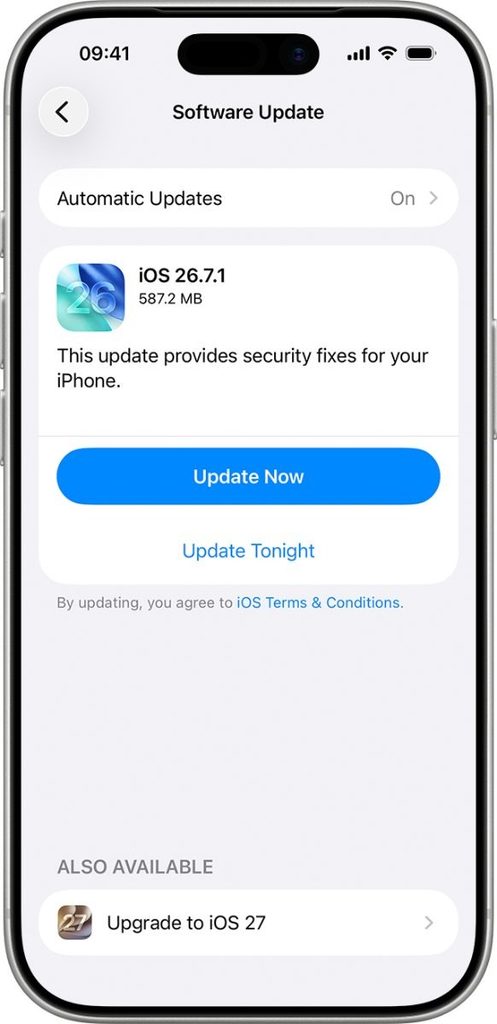
Apple explains the update process in its iPhone software update guide. On an employer-managed device, check with IT before making a major update if your organization has specific compatibility requirements.
7. Change the VPN Protocol if Supported
Different VPN protocols can behave differently on restrictive or unstable networks. If the app has an Automatic or Recommended protocol setting, begin there. Otherwise, try another option officially supported by the provider and test the connection again.
Some apps offer choices such as WireGuard, IKEv2, or OpenVPN; others manage the protocol automatically. A switch can help diagnose filtering or compatibility issues, but no protocol works best on every network. Avoid entering manual protocol or identity values unless the provider has supplied them.
8. Investigate a Connected VPN With No Internet
Sometimes the app displays Connected while websites and other apps cannot reach the internet. Disconnect the VPN briefly: if access immediately returns, the active tunnel, DNS handling, or routing may be involved. Try a different server or supported protocol, then check whether the issue occurs on both Wi-Fi and cellular data.
Also test more than one website or application. If most services work but one banking or streaming app fails, it may be rejecting the VPN address rather than indicating a total connection failure. Repeated failures across all locations and networks are a stronger reason to contact the VPN provider.
9. Review Old Profiles and Manual VPN Details
Open Settings → General → VPN & Device Management and look for configurations from old VPN apps, security filters, or an organization. An outdated or conflicting configuration may affect connectivity, but the presence of several entries is not itself proof of a conflict.
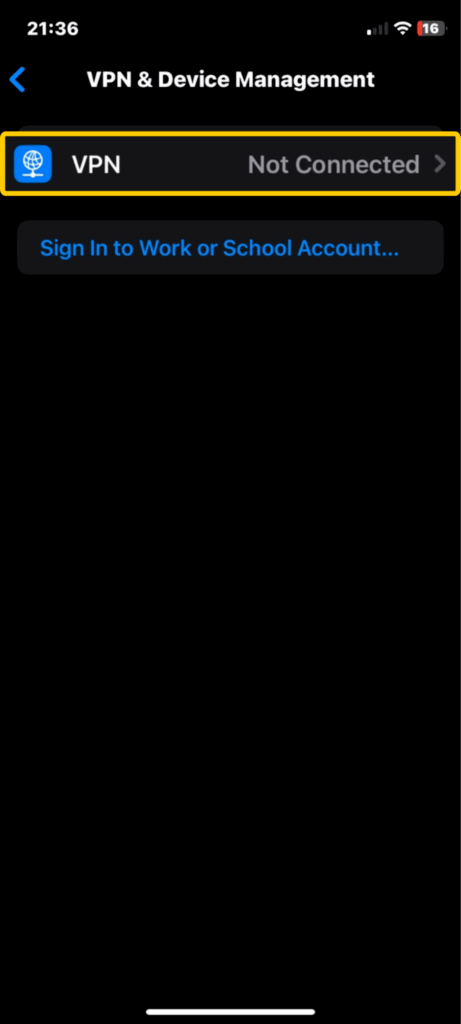
For manually configured IKEv2 connections, compare the Server, Remote ID, Local ID, certificate, and authentication details with the administrator's current instructions. Do not guess missing values.
10. Reinstall the VPN App if Simpler Fixes Fail
If a single consumer VPN app still fails after the earlier checks, reinstalling it may help recreate its app-managed configuration. First, make sure you can sign in again and that you understand how your subscription is managed. Then delete the app, restart the iPhone, reinstall the official version from the App Store, and approve the VPN configuration request when prompted.
Test the connection before restoring unusual app settings. If a clean installation fails in the same way on several networks, the likely cause may be the service, account, or a deeper network configuration issue. Do not remove organizational VPN software without administrator approval.
Reset Network Settings Only as a Last Resort
Reset Network Settings affects more than a VPN, so it should come after server changes, app updates, and other lower-impact checks. On iPhone, the path is Settings → General → Transfer or Reset iPhone → Reset → Reset Network Settings.
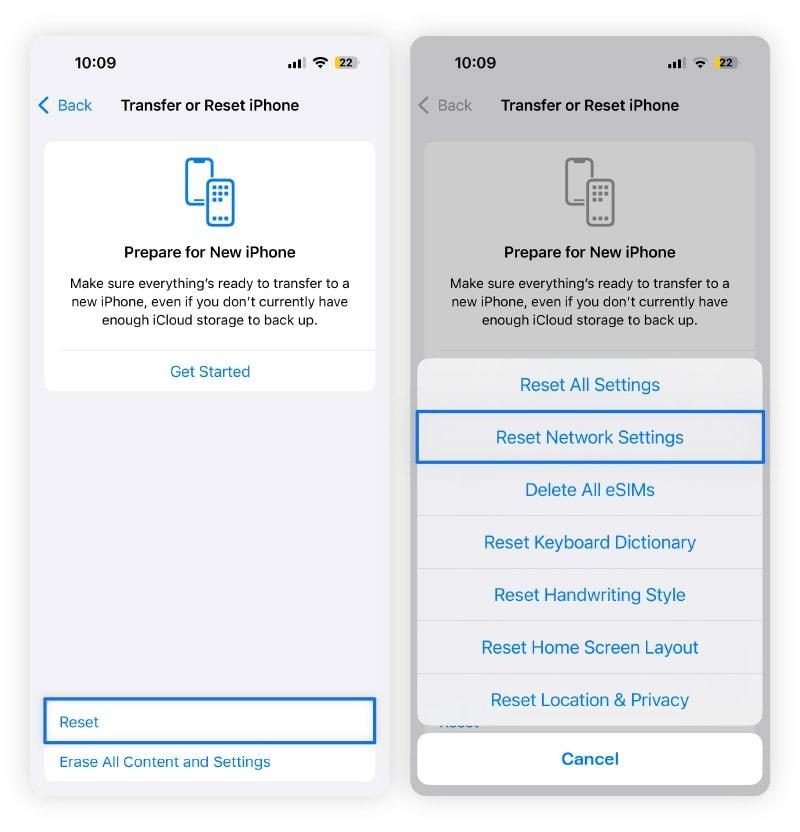
According to Apple's reset-settings documentation, this removes previously used network settings, including saved Wi-Fi networks and their passwords, along with VPN settings that were not installed through a configuration profile or mobile device management. Cellular and related network settings may also be affected. You will need to reconnect to Wi-Fi networks afterward and may need to set up your personal VPN again.
Reset Network Settings does not erase your photos, messages, or ordinary app content. It is not the same as selecting Erase All Content and Settings, which is a much more destructive action. Check the on-screen option carefully before confirming.
Managed VPN profiles are different: a network reset may not remove settings supplied by an organization. Apple also cautions that removing the management profile itself can delete associated accounts and settings. If this is a work or school iPhone, contact the administrator instead of trying repeated resets.
Once the reset is complete, reconnect to Wi-Fi or cellular data and confirm that normal browsing works. Only then reopen your VPN app and test a new connection. If the VPN still fails, repeating the reset is unlikely to add useful information. If slow speeds persist even after trying different servers and VPN protocols, your provider may be affecting your connection performance. Switching to one of the Fastest VPN for iPhone services may help reduce speed-related issues.
What to Do When a VPN Keeps Disconnecting
A VPN that connects successfully but drops repeatedly needs a slightly different diagnosis from one that never connects. Start with one stable Wi-Fi network and a nearby server for several minutes. If the connection remains steady, test cellular data and other server locations one at a time to identify what changes the result.
Switching between Wi-Fi and cellular data can briefly interrupt a VPN session, and automatic reconnect behavior differs by app. Some providers offer settings that attempt to restore protection after a network transition. Check those settings inside the app rather than assuming iOS uses identical behavior for every VPN provider.
If disconnections happen only while using one router, inspect that Wi-Fi network or ask its administrator about filtering and connection restrictions. If they occur on several networks with the same provider, a server, protocol, account, or application issue becomes more plausible. Record whether the problem happens immediately, after the screen locks, or only during network changes; that context will help support identify it.
When to Contact the Provider or Network Administrator
Contact the VPN provider when ordinary internet access works, multiple servers and networks have been tested, and updates or a fresh installation have not resolved the problem. Include the exact error message, VPN app version, iOS version, server location, and whether the failure occurs on Wi-Fi, cellular data, or both. If you can reproduce the issue on a second device, mention that as well.
For company or school VPNs, contact your IT administrator earlier. Managed connections may depend on certificates, account permissions, server policies, and device profiles that ordinary users should not alter. A configuration can also stop working after credentials expire or an organization changes its VPN infrastructure.
When support asks you to collect diagnostic logs, use the provider's approved method and review what information is being shared. Avoid sending passwords, certificate private keys, or other sensitive authentication details in ordinary support messages. If your current VPN keeps disconnecting or experiencing connection errors, switching to a more reliable provider may help. Choosing one of the Best VPN for iPhone options can make it easier to maintain a stable connection.
Frequently Asked Questions
Why Does My VPN Work in Safari but Not in One App?
Some apps check IP addresses, enforce region restrictions, or communicate with services that behave differently over a VPN. Others depend on local network access. If Safari works normally, test another VPN server and check whether the app works with the VPN temporarily disconnected. A problem limited to one app is not necessarily a failure of the entire VPN connection.
Why Does My iPhone Ask to Add a VPN Configuration Again?
A VPN application may request permission again after reinstalling, recreating its configuration, or making certain setup changes. Approve the prompt only if it comes from the VPN app you intended to use. If the request appears unexpectedly or you do not recognize the app, review the configuration and contact the provider before allowing it.
Does Deleting a VPN App Cancel Its Subscription?
No. Removing an app is not the same as canceling a subscription. If you subscribed through Apple, review it under Settings → your name → Subscriptions. If you paid the VPN provider directly, use the provider's billing or account controls. Check the cancellation terms before reinstalling or switching services.
Does every iPhone user need a VPN?
Not necessarily. Whether you need a VPN depends on how you use your iPhone, the networks you connect to, and your privacy requirements. Understanding when a VPN is useful can help you decide whether keeping one active on your device is necessary.