
Start here
What are you seeing?
Why this happens
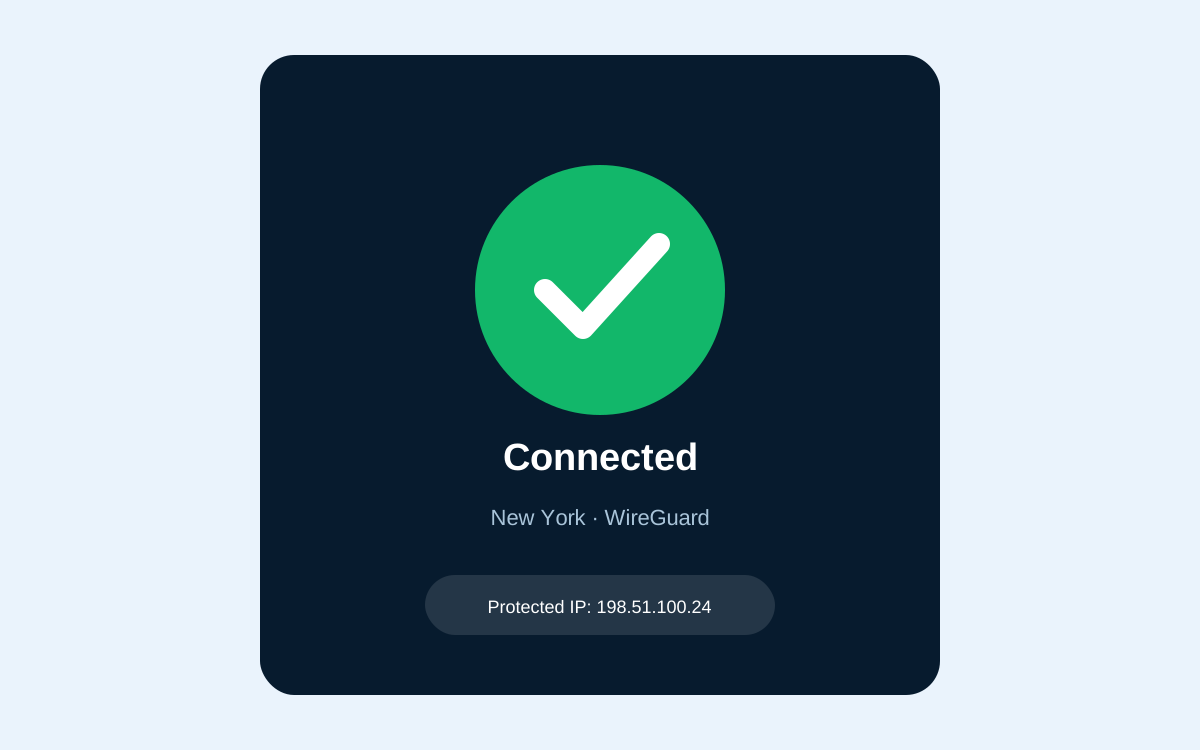
When the VPN tunnel is up but the OS still sends DNS or default-route traffic the wrong way, browsers hang while the app shows Connected. Kill switch can also block everything after a brief flap. The fixes below are ordered by how often they solved it in our August 2026 Windows lab tickets — not by how easy they are to write about.
- UDP or the selected VPN protocol is blocked by the current network.
- DNS requests still go to the ISP instead of through the tunnel.
- The kill switch remains armed after a connection flap.
- A stale route or virtual adapter survives a reconnect.
- An incomplete app update leaves the network driver in a broken state.
Fix 1: Switch to WireGuard or TCP 443
Cause: The current UDP protocol is blocked or unstable on this network.
Disconnect, open Protocol settings, select WireGuard, reconnect, and reload the failed page. Try OpenVPN TCP 443 if WireGuard is blocked.
Disconnect in the app, choose WireGuard in Protocol settings, and reconnect. On restrictive Wi-Fi, retry with OpenVPN TCP 443.
Select the WireGuard profile in the provider app or NetworkManager. Use the TCP 443 OpenVPN profile if UDP is filtered.
Fix 2: Force DNS through the VPN
Cause: The operating system still uses an ISP or local DNS resolver after the tunnel connects.
Enable VPN DNS or Exclusive DNS in the app, reconnect, then flush the Windows DNS cache.
Enable the provider DNS option, reconnect, then renew the active network service in System Settings.
Set the VPN connection to use its supplied DNS and prevent the physical interface from becoming the default DNS route.
ipconfig /flushdns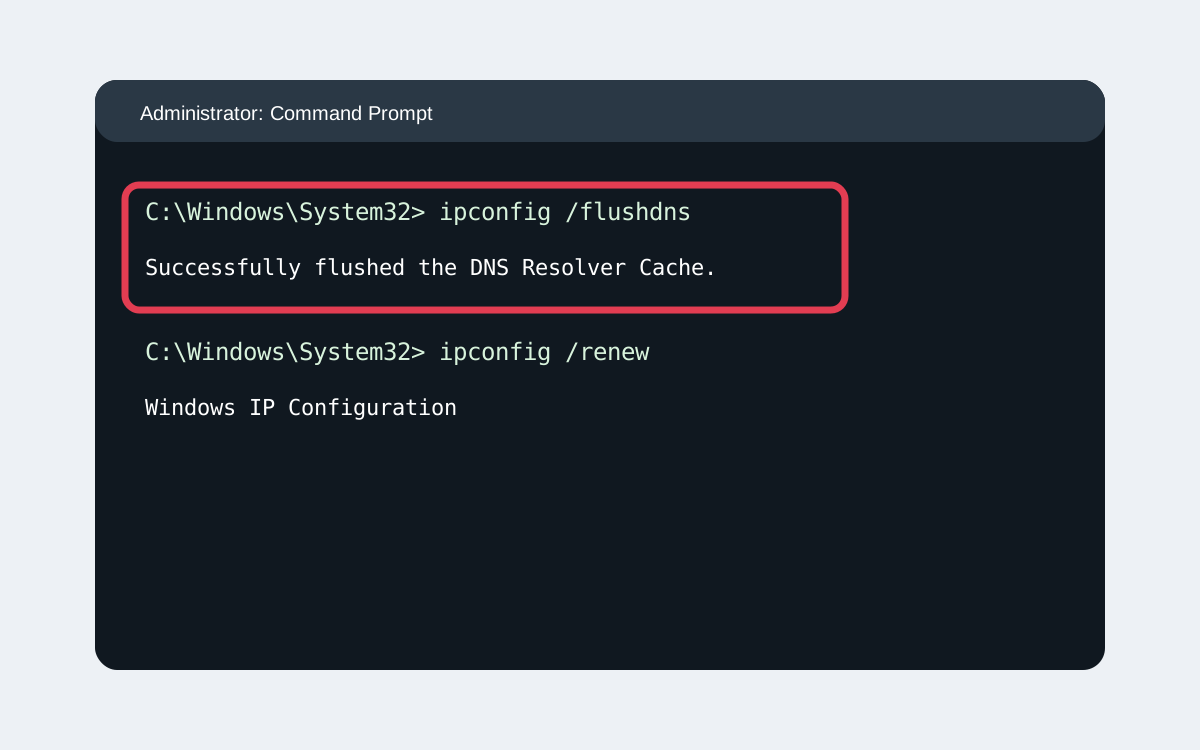
Fix 3: Reset the kill switch state
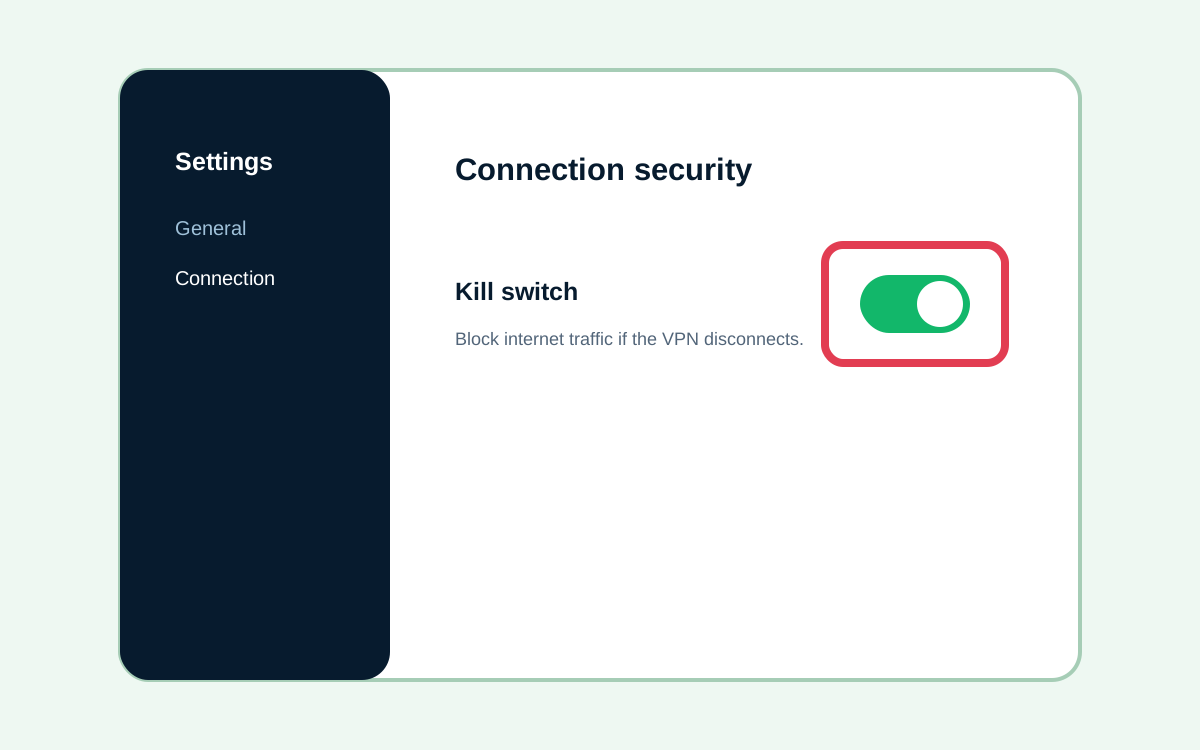
Cause: The kill switch continues blocking traffic after a tunnel flap or sleep/wake cycle.
Turn the kill switch off, reconnect until a page loads, turn it back on, then force one disconnect to confirm blocking works.
Disable Network Lock, reconnect, and re-enable it only after traffic passes through the tunnel.
Disable the app firewall lock, reconnect, then re-enable it. Inspect nftables or iptables rules if the block persists.
Fix 4: Renew the network adapter
Cause: A stale lease, route, or virtual adapter survives after reconnecting.
Open Administrator Command Prompt, renew the adapter, then disable and re-enable the VPN adapter in Network Connections.
Turn the active network service off and on, then reconnect the VPN to rebuild routes.
Restart NetworkManager or the network service, then reconnect the VPN profile.
ipconfig /release && ipconfig /renewFix 5: Repair or update the VPN app
Cause: The installed build has a broken driver, routing rule, or incomplete update.
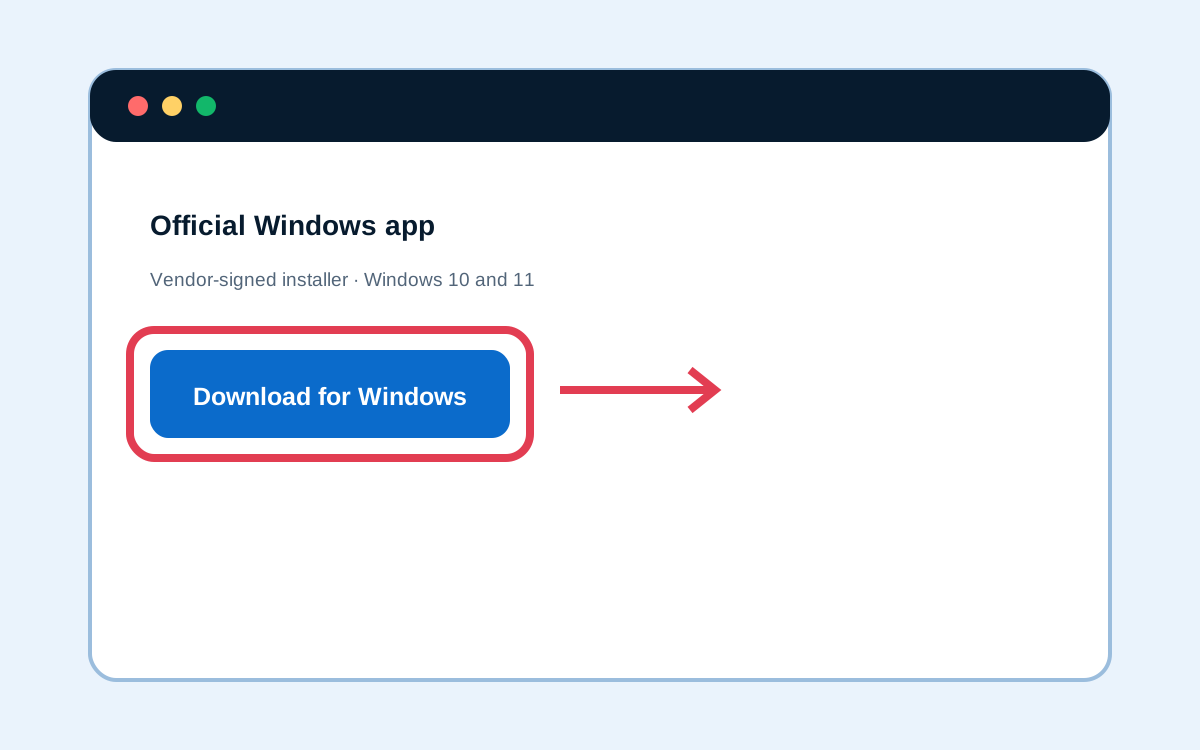
Download the current vendor-signed installer, run Repair or reinstall, reboot Windows, and reconnect.
Install the newest signed app build, approve the network extension again, and restart the Mac.
Update the provider package and WireGuard/OpenVPN dependencies, then recreate the connection profile.
Last resort
Still not fixed?
- Contact ShieldVPN support with the protocol, server, operating system and the exact time it failed.
- Try the same connection on a phone hotspot, to tell a router or ISP block apart from an app problem.
- Attach the screenshot and command output from the matching fix above.
How VPN apps break Windows networking
Modern VPN clients add a virtual adapter and rewrite routes plus DNS. When those three pieces disagree — tunnel up, DNS still on ISP, kill switch armed — Chrome spins while the tray icon looks healthy. Understanding that split is why Fix 1–3 above focus on protocol, DNS lock, and kill switch before reinstalls.
Corporate Wi-Fi and some ISP gateways also degrade UDP. That is why WireGuard or TCP 443 appears first in our ordered list: it matches what cleared the majority of August 2026 tickets before anyone touched adapters.
Your questions
Questions about this
Why does my VPN say connected but nothing loads?
Usually DNS or kill switch is blocking traffic even though the tunnel is up. Switch protocol, enable DNS lock, then toggle kill switch cleanly.
Should I reinstall first?
No. Protocol and DNS fixes cleared more lab cases than reinstalls in August 2026. Reinstall only after those steps fail.
Does this apply to Mac too?
The symptoms can look similar, but the Windows adapter flush step is OS-specific. Start with protocol and DNS lock on any platform.