Before you start
What you'll need
- Download
- Install
- Sign in
- Enable kill switch
- Connect nearby
- Verify IP and DNS
- An active VPN subscription or trial with a Windows app
- A Windows 10 or 11 account with administrator rights
- A stable Wi-Fi or Ethernet connection
- About five minutes without other large downloads
- Windows 11 app
- Recommended: the provider app manages WireGuard, DNS, updates, and kill switch in one place.
- Windows 10 app
- The same flow applies; Settings labels can differ slightly on older builds.
- Manual setup
- Use Windows built-in VPN only when your provider supplies IKEv2 credentials; kill-switch controls are more limited.
Step 1: Download the official Windows app
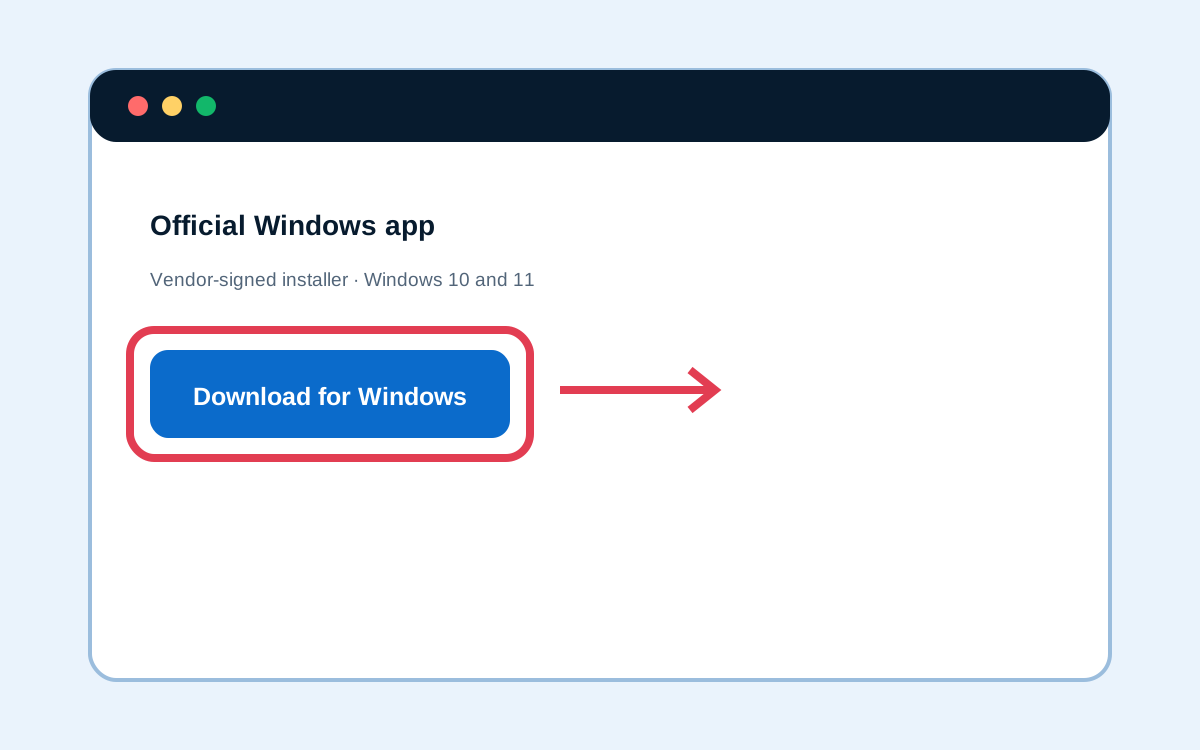
Open the provider’s official site and download its vendor-signed Windows installer. Avoid third-party app mirrors.
Step 2: Install and sign in
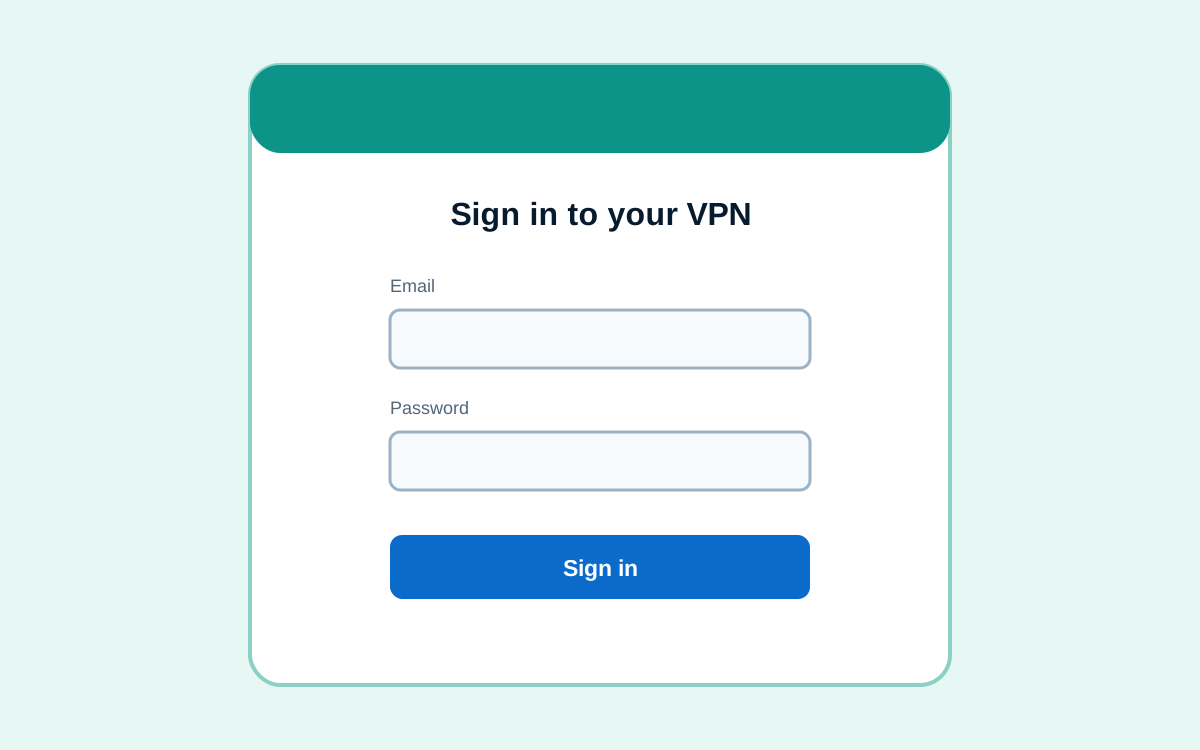
Run the installer, approve the virtual network adapter, then sign in with the account you used at checkout.
Step 3: Enable kill switch before connecting
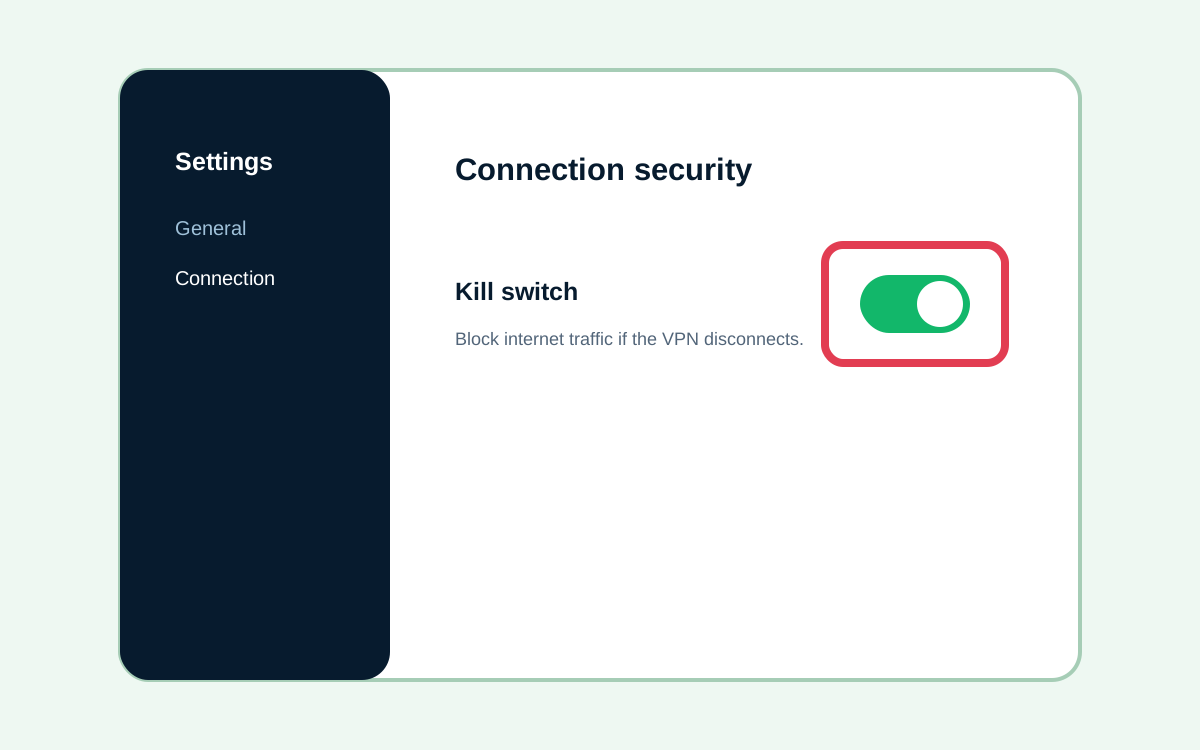
Open Settings → Connection and enable Kill switch or Network lock before the first tunnel starts.
Step 4: Connect to a nearby server
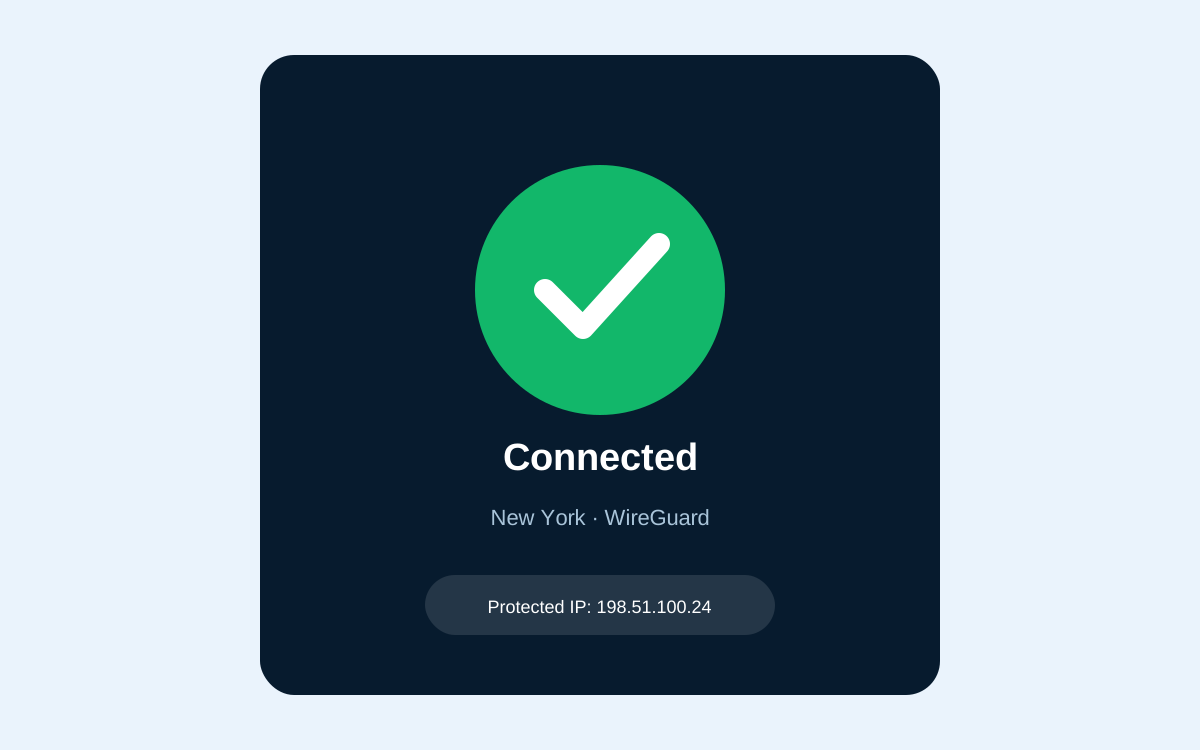
Choose WireGuard and a nearby city, wait for the app to show Connected, then continue to the IP and DNS checks below.
After setup
Check that it works
- Public IP changed The reported IP and city now match the VPN server, not your ISP.
- DNS stays inside the tunnel The DNS test does not list your ISP resolver.
- Kill switch blocks a forced drop Pages stop loading while the tunnel is disconnected and resume after reconnect.
Recommended security settings
- Keep the kill switch enabled for untrusted networks.
- Use WireGuard unless a restrictive network requires TCP 443.
- Enable auto-connect on public Wi-Fi, but not on trusted home networks if local-device access breaks.
Alternative: set up VPN on your router instead
If every device at home needs coverage, a router install beats per-device apps. ShieldVPN’s native Asus/GL.iNet apps are the easier path; NordSecure still expects manual WireGuard profiles on most firmware. Router setup takes longer than the five-minute Windows flow above — budget 20–40 minutes including a firmware check.
SmartDNS is not a VPN. It can unlock some catalogs without encrypting traffic; we only mention it when a reader cannot install an app at all. For Windows desktops, the app path remains the default we recommend.
Your questions
Questions about this
How long does VPN setup on Windows take?
About five minutes on a clean Windows 11 PC in our August 2026 timing: download, install, enable kill switch, connect nearby.
Do I need to pay before installing?
Most Windows apps require an account. Create the account at checkout first, then sign in — that is why the CTA sits on the install/sign-in step.
What if Windows blocks the installer?
Use the vendor-signed build from the official site, choose Run as administrator if prompted, and allow the virtual adapter through Windows Firewall.